Enable Safe Links in Microsoft Defender for Office 365
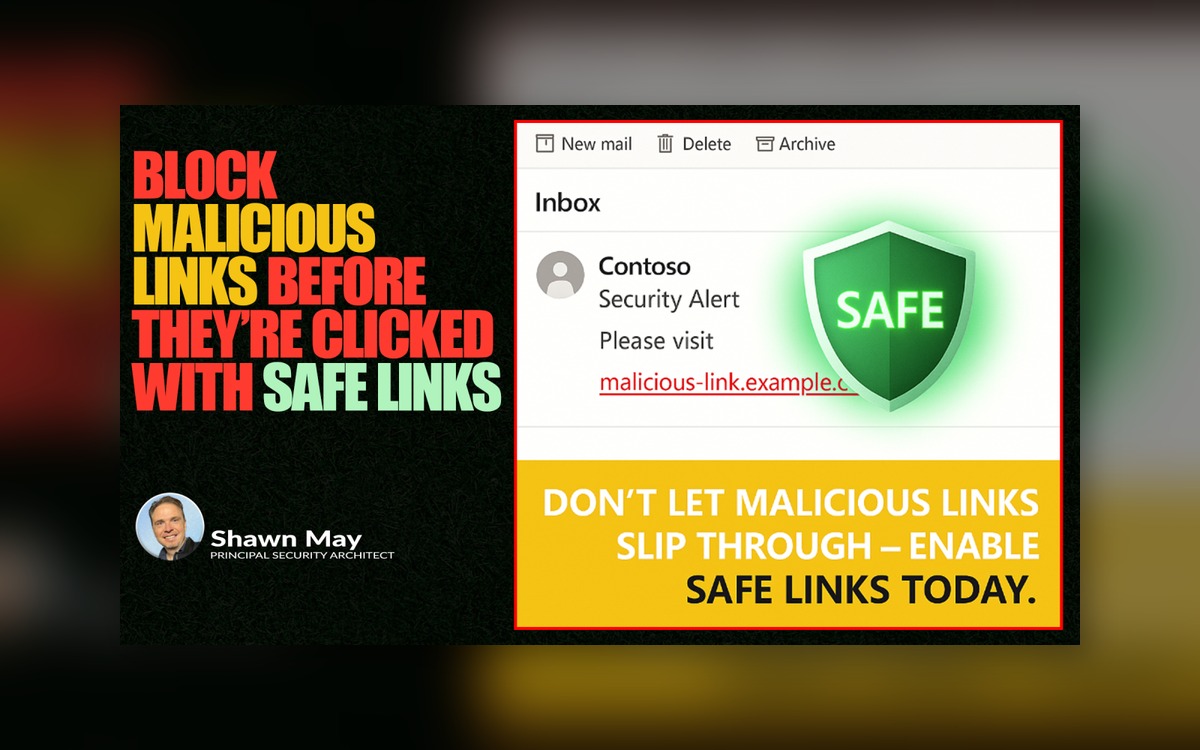
Why this matters: Phishing emails are not always obvious. In fact, many look like they came from a trusted colleague or a legitimate service you use every day. The real danger is in the hidden links. One quick click can send you to a spoofed login page or a site ready to drop malware onto your system. Safe Links acts like a bodyguard for every link, scanning it in real time and blocking dangerous destinations before they ever load. Think of it as having a security guard who checks every door before you walk through it.
Steps to enable:
-
Sign in to the Microsoft 365 Security & Compliance Center.
-
Go to Policies & Rules > Threat Policies.
-
Select Safe Links under Policies.
-
Click + Create or choose an existing policy to edit.
-
Turn on “Apply Safe Links to URLs” and ensure “Do not let users click through to the original URL” is selected.
-
Apply the policy to All Users or select specific user groups.
-
Save and confirm the changes.
Pro tip: If you have departments or executives who are more likely to be targeted (such as finance, HR, or executives), make sure they are covered by Safe Links immediately. These individuals are often targeted first because of the sensitive data and systems they can access.
Required Licensing
Safe Links is part of Microsoft Defender for Office 365 and is available in several licensing combinations:
Included by default in:
-
Microsoft 365 E5
-
Office 365 E5
-
Microsoft Defender for Office 365 Plan 1 (standalone)
-
Microsoft Defender for Office 365 Plan 2 (standalone)
-
Microsoft 365 Business Premium
-
Microsoft 365 E5 Security add-on
Available as an add-on to:
-
Microsoft 365 E3 (add either Defender for Office 365 P1 or P2)
-
Office 365 E3 (add either Defender for Office 365 P1 or P2)
-
Microsoft 365 Business Standard (add Defender for Office 365 P1 or P2)
-
Microsoft 365 Apps for Business or Enterprise (add Defender for Office 365 P1 or P2)
-
Exchange Online Plan 1 or Plan 2 (add Defender for Office 365 P1 or P2)
Plan differences:
-
Plan 1 (P1): Provides Safe Links, Safe Attachments, and basic reporting.
-
Plan 2 (P2): Includes everything in P1 plus automated investigation, threat hunting, and attack simulation training.
Tip: If you already own Microsoft 365 Business Premium or Microsoft 365 E5, you already have Safe Links and just need to configure it. If you are on E3 or lower plans, you can bolt it on without upgrading your entire suite.