How to Read a Conditional Access Policy Without Trusting the Name
A conditional access policy is the rule in Microsoft Entra that decides who gets in, to what, under which conditions, and what they have to prove first. You read one by turning it into a single sentence and checking that sentence against the settings, not against the name someone typed on it. Read the included list down the left first, then the excluded list, because an exclusion quietly overrides an inclusion.
Here's one way how things can goes wrong. A policy sits in your tenant named "Require MFA for Everyone." Seems simple enough – it's enabled. You'd bet your whole payroll it covers all your employees. Then a sign-in slips through with no second factor, because that policy name promised coverage which it factually never delivered. That's how an account gets taken and a wire goes out the door. Then comes the Monday you lose to your insurer.
Every policy is one sentence
Every conditional access policy reads as one plain sentence:
- Who is reaching what
- Under which conditions and,
- what they must prove to get in (gain access).
Users and groups are the who, apps and resources the what, location and device and risk the conditions, and the grant controls the requirement. Say it out loud before you trust it to do anything.
If you can't say a policy as a sentence, you don't understand it yet. That isn't a knock. That's the whole skill.
Here’s how to read a policy
There is a particular and straight forward method I coach how to easily read a policy.
- Start first with what all is included in the policy, including the access control (e.g. Grant or Block).
- Next subtract what is excluded.
You can easily sketch this out on paper or use my inventory script. Create two columns. Along the left column, write down every include from top to bottom. That gives you a complete picture of the reach for that particular policy – in plain sight. Down the left: all users, all resources, any network or location, and a grant control requiring a set authentication strength.
Policy 1: read straight down the green Include column.
As a sentence: every user, reaching everything, from anywhere, has to pass multifactor authentication. Clean. You can predict exactly what it does before anyone tells you.

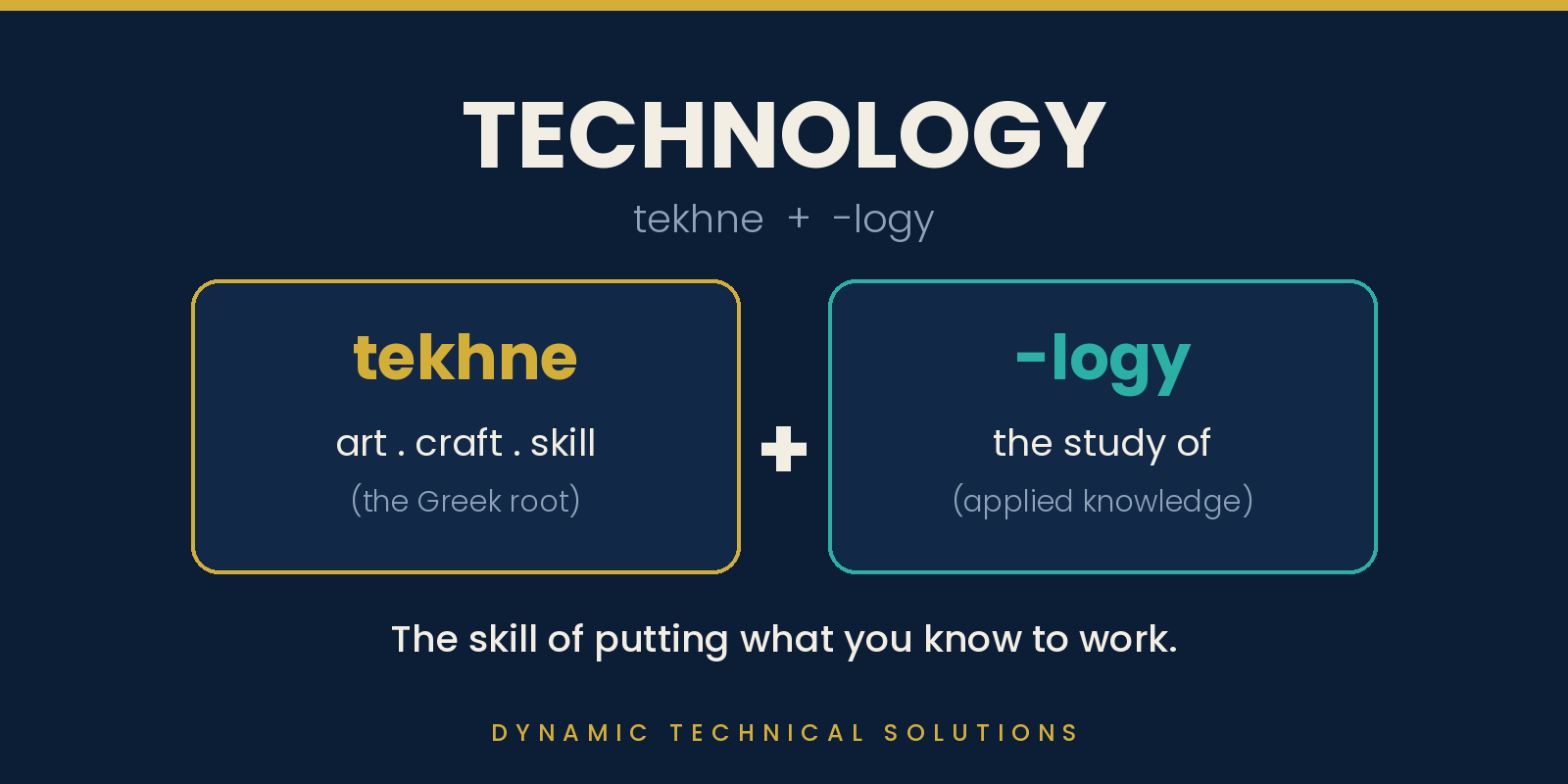
This is where technology actually shows up, and not the phones-and-cloud kind. The word comes from the Greek tekhne, meaning art, craft, or skill, plus -logy, the study of it.
Anyone can look up what conditional access is. The craft is reading a live policy, predicting what it does, and spotting what's off in moments. Owning the tool isn't the same as applying it right, and that gap is where we spend our time with clients.
Next is exclusions
Next sketch down the right-hand column what all is excluded – because this is where the sentence you just read can flip. Microsoft is blunt about the rule: “When organizations both include and exclude a user or group, the user or group is excluded from the policy. The exclude action overrides the include action in a policy.” Included and excluded at the same time means excluded. Every time.

On this policy the only exclusion is the break-glass accounts, and that one belongs there. Those are your emergency admins. Microsoft's own guidance says to exclude emergency access accounts from policies that block or restrict sign-in, so you don't lock yourself out during the exact crisis they exist for.
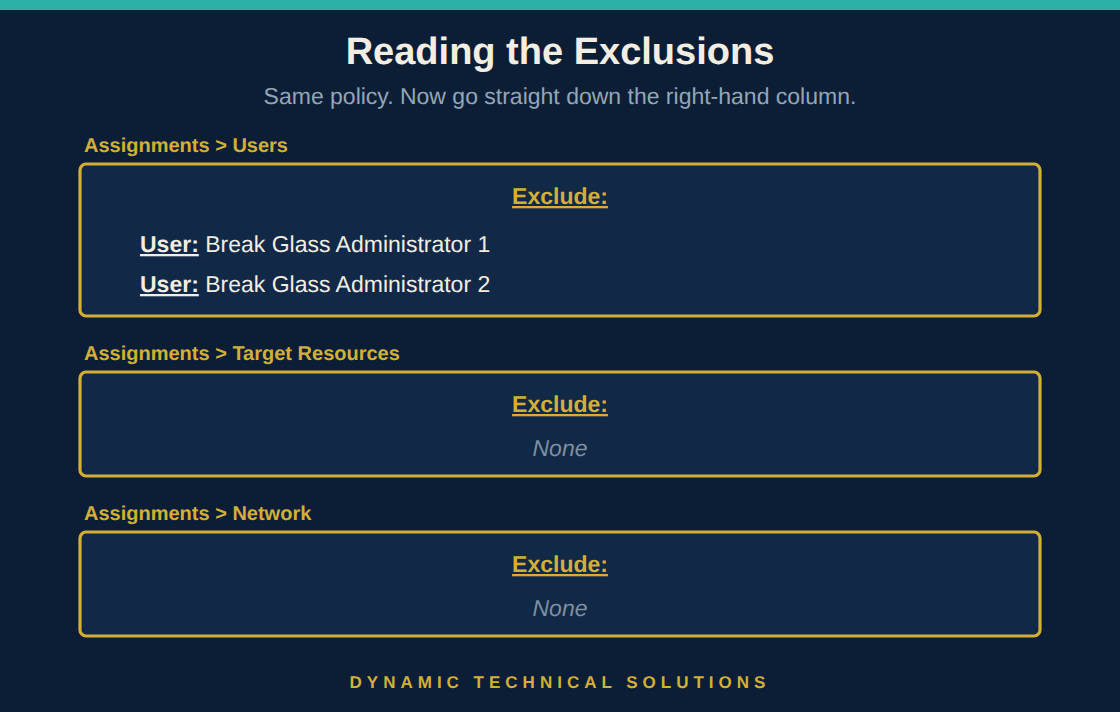
The danger comes in when exclusions are added which you don’t want. Someone excludes a group to fix one login, forgets who else is in it, and the policy quietly stops covering ten people while the policy name continues to promise coverage. I drill this particular point how to read policies in our tailored coaching session.
Two policies, and the word that flips the meaning
Read the grant controls just as carefully, because one word changes the whole sentence. Here's a second policy.

It requires a trusted device, and it's set to “require one of the selected controls.” That's an OR: a compliant device or a hybrid-joined device gets you in. Flip that toggle to “require all” and now you need both. Same checkboxes, different sentence.
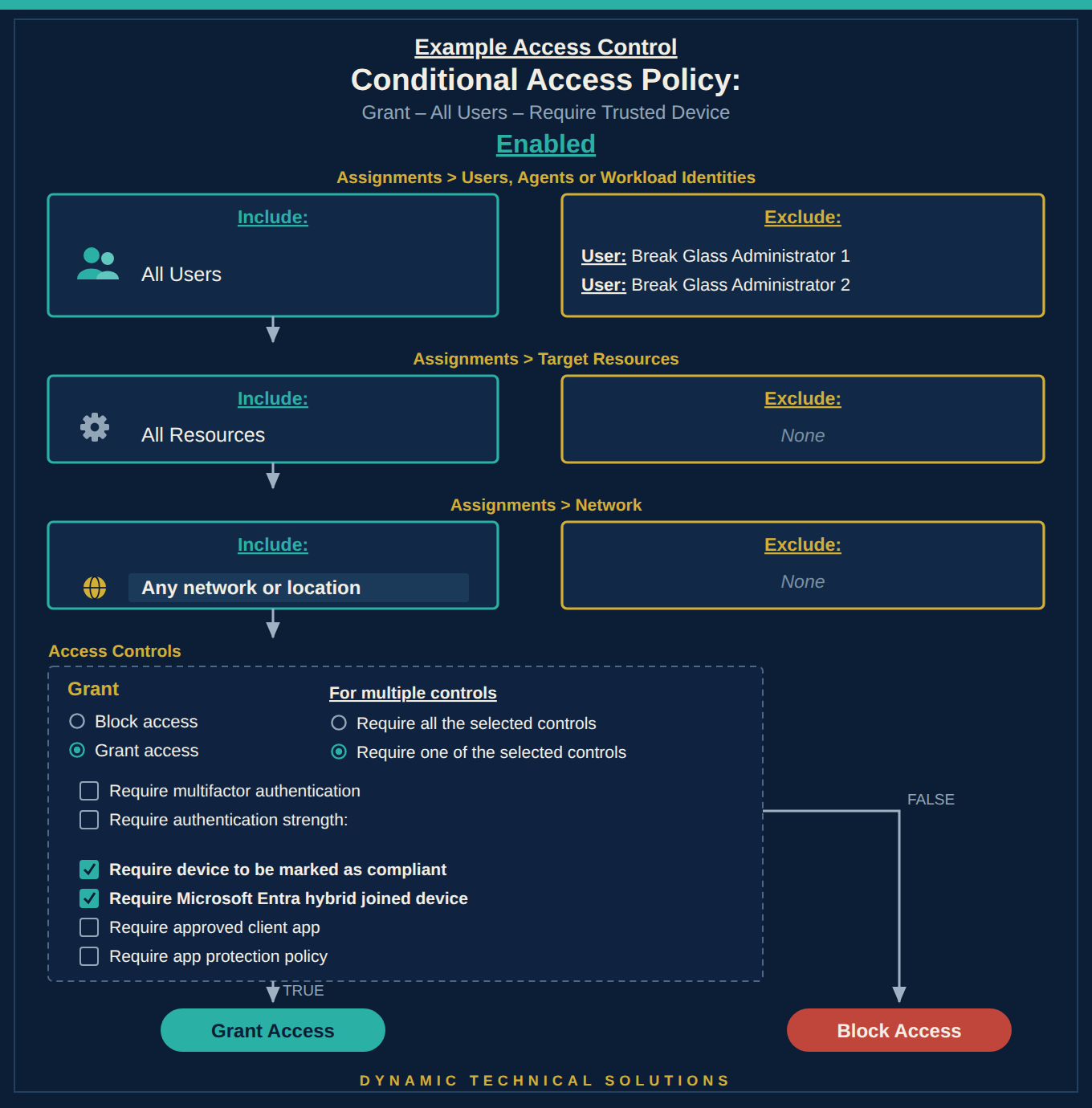
Policy 2: a trusted-device policy set to “require one of” (OR).
Two more things Microsoft spells out. When several policies apply to the same sign-in, all of them have to be satisfied, not just one. And if any policy blocks, the sign-in is blocked no matter what the others allow. There's no priority number and no first-match-wins. Block always wins.
What good looks like here is boring on purpose. One policy, one job, a name that says what it does, and the fewest exclusions you can live with. That single-purpose habit is the one we teach, because a policy you can read as a sentence is one you can trust, troubleshoot, and hand off without a landmine buried in it.
Today's one move:
- open your tenant, pick the policy with the most confident-sounding name
- Sketch it out.
- Read it as a sentence, left column then right.
If the sentence and the name disagree, believe the sentence. Get use to this.
FAQ
How do you read a conditional access policy?
Turn it into one sentence: who is reaching what, under which conditions, and what they must prove. Read the included list down the left first, then the excluded list. Check that sentence against the settings, never against the policy's name.
What does it mean that exclude beats include in Conditional Access?
If a user is both included and excluded in the same policy, Microsoft excludes them. The exclude action overrides the include action, every time. That's why one forgotten exclusion group can quietly pull people out of a policy the name says covers everyone.
Should break-glass accounts be excluded from Conditional Access policies?
Yes. Microsoft's guidance is to exclude emergency access, or break-glass, accounts from policies that block or restrict sign-in, so you're not locked out during the exact emergency they exist for. Keep the exclusion tight and monitor those accounts closely.
What's the difference between “require all” and “require one of” the selected controls?
“Require all” is AND: every selected control must be met. “Require one of” is OR: any one satisfies the policy. The same checkboxes read as two different rules depending on that setting, so confirm which is chosen before you predict what a policy does.

Glossary
Conditional Access policy: A rule in Microsoft Entra that grants, blocks, or adds requirements to a sign-in based on who, what, and the conditions.
Grant control: The requirement a sign-in must meet to be allowed, such as multifactor authentication or a compliant device.
Exclusion: A user, group, or account left out of a policy. Exclusions override inclusions, so each one is a gap to watch.
Break-glass account: An emergency admin account kept usable when other access fails. Excluded from blocking policies on purpose.
Authentication strength: A grant control that requires a specific quality of multifactor sign-in, not just any second factor.
Sources
Microsoft Learn, “Build Conditional Access policies” (policy evaluation, block precedence, require all vs require one) https://learn.microsoft.com/en-us/entra/identity/conditional-access/concept-conditional-access-policies
Microsoft Learn, “Conditional Access: Users, groups, and workload identities” (exclude overrides include) https://learn.microsoft.com/en-us/entra/identity/conditional-access/concept-conditional-access-users-groups
Microsoft Learn, “Manage emergency access accounts” (exclude break-glass from blocking policies) https://learn.microsoft.com/en-us/entra/identity/role-based-access-control/security-emergency-access