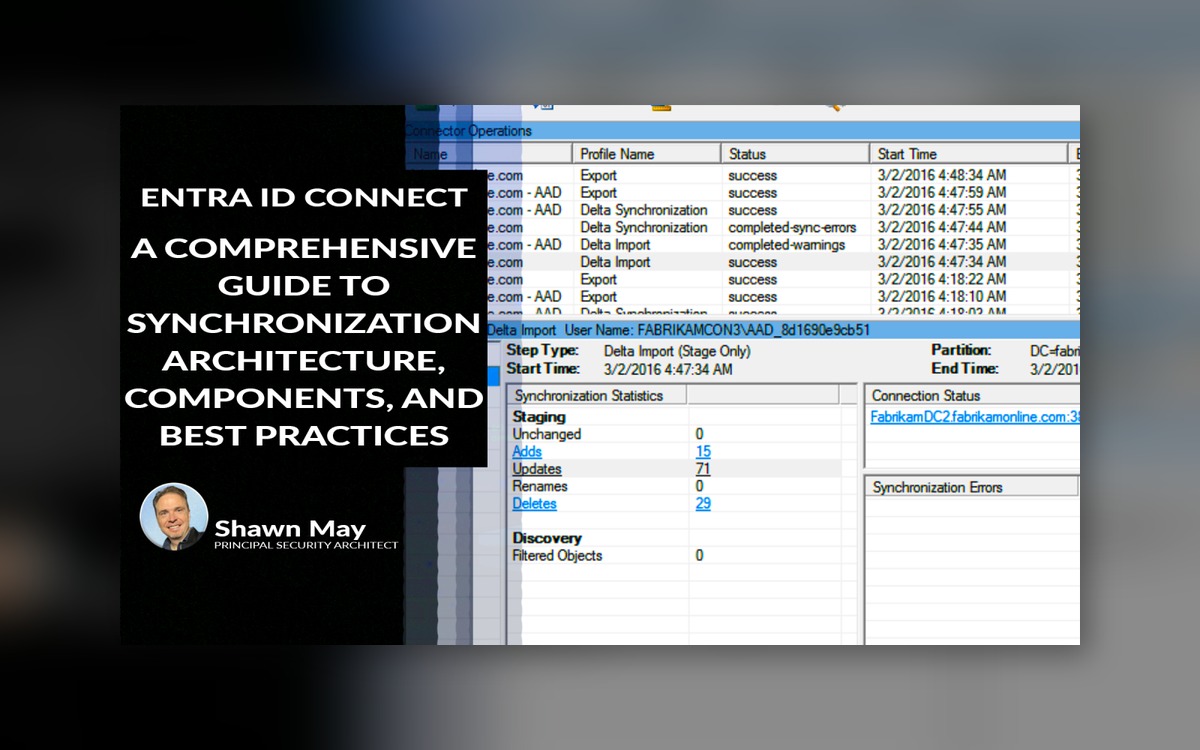
A Comprehensive Guide to Synchronization Architecture, Components, and Best Practices
Entre ID Connect (Formerly Azure AD Connect)
Microsoft EntreID Connect is the evolution of Azure AD Connect—rebranded to align with the Microsoft Entra family of identity solutions. While the name has changed, the core purpose remains the same: enabling hybrid identity by synchronizing objects between on-premises Active Directory (AD) and Microsoft Entra ID (formerly Azure AD). This guide helps you understand the architecture, how the components work together, and how to manage and troubleshoot synchronization effectively.
Core Purpose: EntreID Connect bridges the gap between your on-premises identity systems and the cloud. It ensures your users, groups, and devices are synchronized and consistently represented in both environments. This allows for a single identity across systems, enabling access management, single sign-on, and conditional access policies.
At a high level, Entre ID Connect performs three main functions:
-
Imports data from both Entra ID and on-prem Active Directory.
-
Syncs changes into a central “metaverse” database for comparison.
-
Exports updates to both environments.
1. Entre ID Connect Wizard
Tip: Pin the wizard to your taskbar for easy access. This is critical for changing configurations, role-switching tasks along with several other functions.
The EntreID Connect wizard provides the graphical interface for setup and configuration. It’s typically used during the initial deployment or when you need to modify core settings. You’ll still see it labeled as “Azure AD Connect” in some installations, but the experience is the same.
The wizard enables you to:
-
Run the initial sync setup.
-
Add or remove AD forests and containers.
-
Configure synchronization features (e.g., password hash sync, writeback).
-
Set or change server roles (primary vs. staging).
-
Modify filtering rules for objects and attributes.
The wizard writes core sync settings to configuration files and registry entries. When using automation or scripting, Microsoft recommends referencing these files for diagnostics.
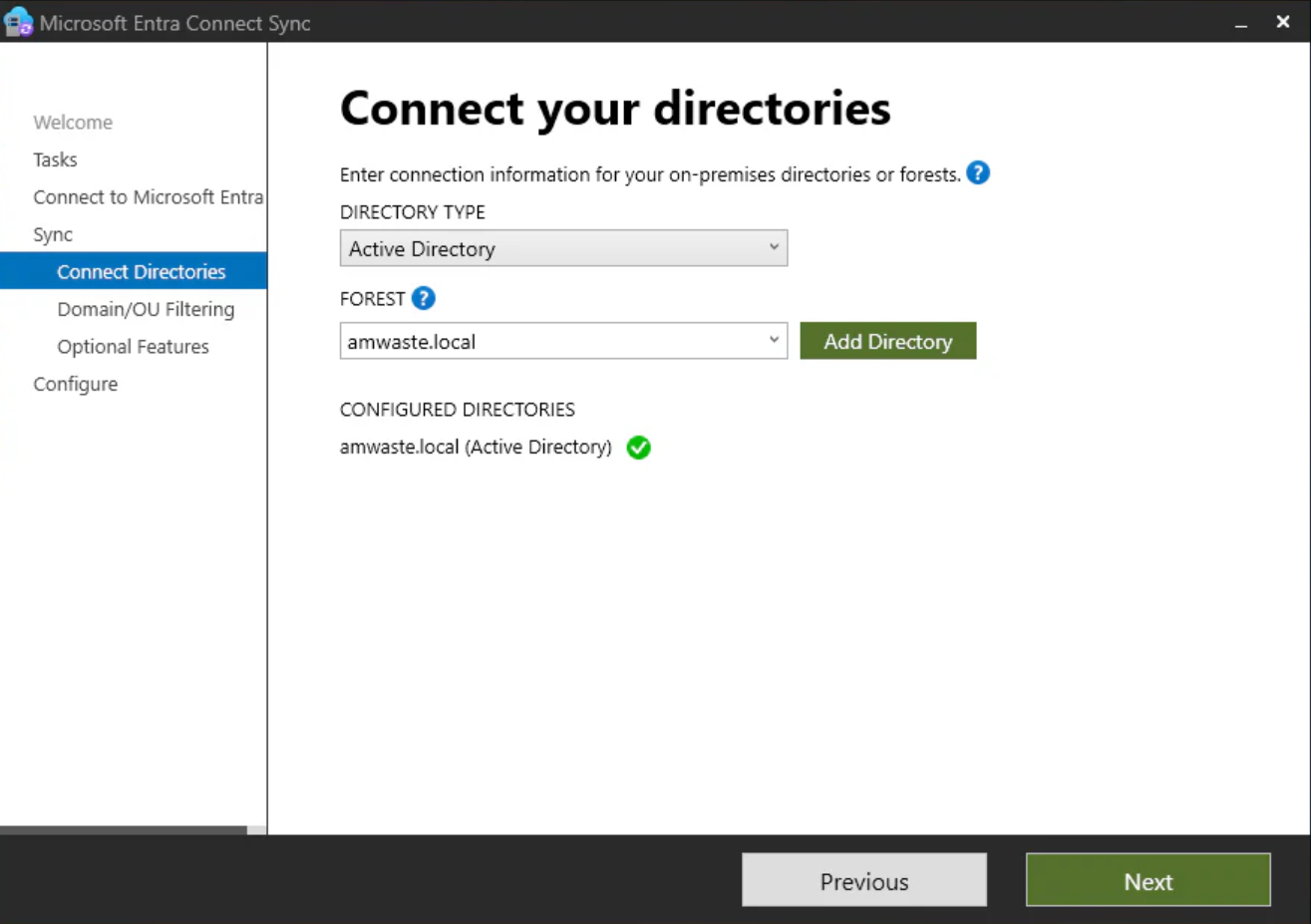
Entra ID Connect Wizard
Docs: What is Microsoft Entra ID Connect
2. Synchronization Service Manager
Tip: This is where you’ll spend most of your operational time. I’ve found it incredibly useful for diagnosing issues quickly—especially the Operations and Connectors tabs.
Once EntreID Connect is set up, the Synchronization Service Manager becomes your main operational tool. It provides detailed visibility into sync jobs, object flows, and troubleshooting data. This application is launched via miisclient.exe and gives you direct access to how data is moving through the system.
Key tabs:
-
Operations: Tracks sync cycle statuses
-
Connectors: Lists and manages connections to AD forests and Entra ID
-
Metaverse Designer/Search: Inspect object data and schema mapping
Supported Sync Types:
-
Delta Sync: Triggered every 30 minutes by default.
-
Initial or Full Sync: Used for schema changes, new connectors or significant changes.
PowerShell examples:
-
Start-ADSyncSyncCycle -PolicyType Delta
-
Start-ADSyncSyncCycle -PolicyType Initial

Synchronization Service Manager
Docs: Microsoft Entra Connect Sync: Scheduler
3. Synchronization Process
Reminder: Always understand the difference between delta and full sync. Triggering the wrong type after a change can lead to unexpected behavior or delays in updates pushing out.
EntreID Connect runs sync cycles that follow a clear pattern: import, sync, export. These are either delta syncs (processing only changes) or full syncs (processing everything).
Sync Cycle Overview:
-
Import: Pulls in data from Entra ID and AD
-
Sync (Metaverse Update): Updates the internal metaverse with the latest changes
-
Export: Pushes relevant changes back to both source directories
Docs: Microsoft Entra Connect Sync: Make a change to the default configuration
4. Staging Server (Secondary Server)
Important: Don’t let the term “high availability” mislead you—failover isn’t automatic. You have to promote the staging server manually using the wizard. Practice this process before you need it.
Staging servers mirror the primary but do not export. They only perform imports and metaverse updates. The goal is to keep the staging server within 30 minutes of the primary’s state.
Why it matters:
-
Provides high availability
-
Serves as manual failover during outages or maintenance
-
Keeps sync data ready without impacting live systems
Docs: Microsoft Entra Connect: Staging server and disaster recovery
5. Connectors and Forest Configuration
Reminder: Connector naming can be confusing. Always verify which one points to AD vs. Entra before modifying anything.
Each forest has its own connector. Forests may contain multiple domains (as partitions). You can define synchronization scope by:
-
Organizational Unit (OU)
-
Domain
-
Attribute filters
Docs: Microsoft Entra Connect Sync: Configure filtering
6. Object and Attribute Management
Tip: Limit the sync scope to necessary objects. It improves performance and reduces troubleshooting overhead.
You can manage what objects and attributes are synchronized using the Synchronization Rules Editor. Always clone default rules—don’t edit them directly.
Docs: End-to-end troubleshooting of Microsoft Entra Connect objects and attributes
7. Rules Editor Overview
Warning: The Rules Editor is powerful—and risky. Never edit built-in rules. Clone, adjust, and save as new.
The Sync Rules Editor is often overlooked but is a critical component used to configure how attributes are transformed and mapped between source and target directories.
The Rules Editor is separate from the Synchronization Service Manager and must be launched independently. You should pin it to your taskbar alongside the Sync Manager and Wizard for quick access.
This is where transformation rules are created. For example, transforming an on-premises attribute value into a format expected by Entra ID. Microsoft provides many default rules, but in real-world environments, customized rules are also common. See automation script below.
Key points:
-
Use caution when navigating in the Rules Editor
-
Always click Cancel unless you’re sure about the changes
-
Do not directly edit out-of-box rules; instead, disable and clone them
-
Consider using PowerShell to import multiple rules instead of clicking through the UI
The editor interface displays:
-
Direction: Inbound or outbound
-
Metaverse object type
-
Connector used
-
Transformation logic
You’ll notice two rule types:
-
Standard (out-of-box)
-
Customized (created specifically for your org)
When reviewing these rules, remember that clicking “Next, Next, Finish” doesn’t always apply your changes. Use the Save button, or simply exit with Cancel during review.
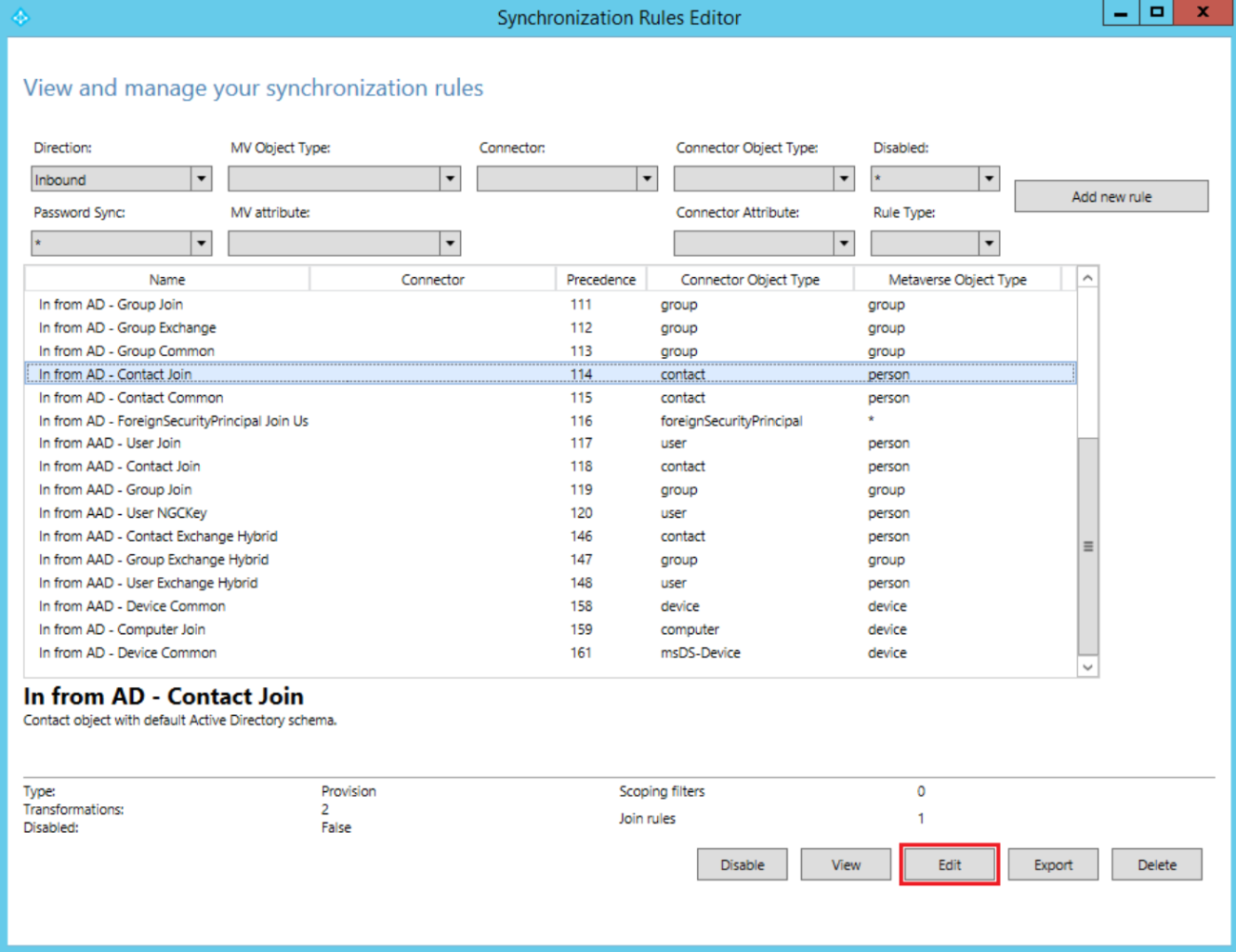
Synchronization Rules Editor
8. Metaverse Overview
Watch out: If something isn’t syncing right, Metaverse Search is the first place I check.
The metaverse is an internal data repository inside EntreID Connect. It’s where data from all directories is joined, transformed, and processed before export. You don’t interact with it directly, but you can view and search it through the Metaverse Search tab.
-
Shows combined view of AD + Entra objects
-
Reveals how attribute values are transformed
-
Helps identify sync issues and export errors
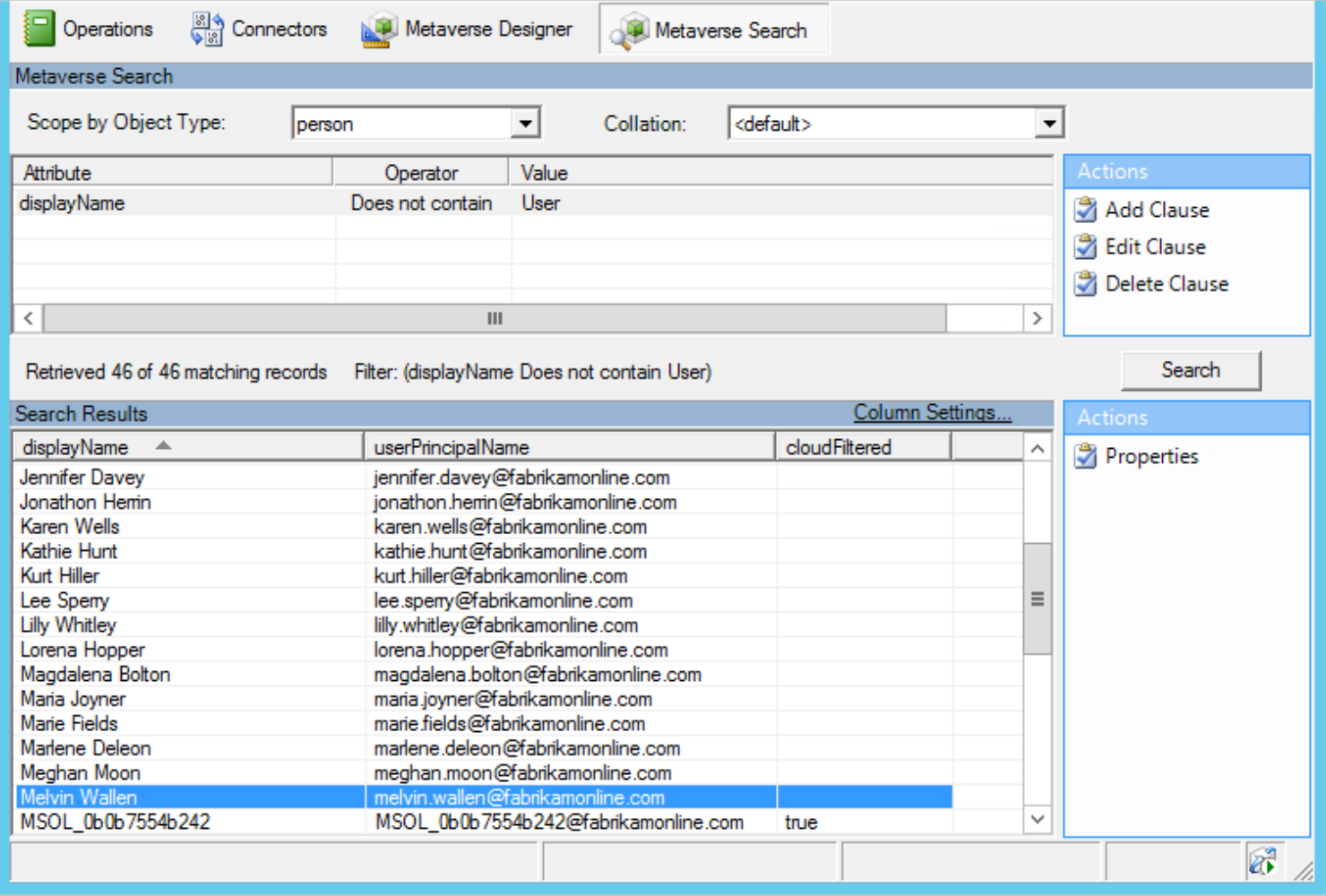
Metaverse Search
9. Service Accounts and Permissions
Personal Note: Service accounts are a frequent point of failure. Track their permissions, rotation schedules, and whether they’re CyberArk-managed or static. Consistency here avoids future incidents.
EntreID Connect uses different service accounts for its operations:
-
GMSA (Group Managed Service Accounts): Connects to SQL backend
-
AD Forest Accounts: Used to connect and sync with each AD forest
Requirements:
-
Must have Replicate Directory Changes and Read permissions
-
Best to use separate accounts per forest for separation of duties
Docs: Microsoft Entra Connect: Accounts and permissions
10. Visual States of Containers
Personal Note: If you’re not careful, a gray checkbox can trick you into thinking you’re syncing everything when you’re not. Always expand and confirm OU selections.
When selecting containers (OUs) for synchronization, you’ll notice different visual indicators:
-
Solid blue check (✓): Root and all sub-containers are selected
-
Gray check: Root is selected, but not all sub-containers (OUs) are selected
-
Gray box (no check): Root not selected, only some children selected
Changes to container selections trigger a full sync.
11. Troubleshooting and Monitoring
Tip: Don’t wait for issues to arise—build a habit of reviewing the Operations tab weekly. It helps you catch small anomalies before they become big problems.
EntreID Connect provides several tools to help you identify and resolve problems:
-
Operations Tab: View status, errors, and timestamps
-
Export Errors: Track object-level failures
-
Metaverse Search: Inspect attribute flow and sync states
-
PowerShell: Use Get-ADSyncConnectorRunStatus.ps1 to monitor job history
Errors are also logged under:
-
Event Viewer → Directory Synchronization logs
-
Synchronization Manager interface
Common error types:
-
export-failure-not-retryable
-
dn-attributes-failure
Docs: Troubleshooting object synchronization with Microsoft Entra Connect Sync

I wanted to provide you an example of how to automate generating custom sync rules in Entra ID Connect.
 This PowerShell function creates a custom Entra ID Connect (previously Azure AAD Connect) inbound synchronization rule that sets the usageLocation attribute for users. It checks for a specified Active Directory (AD) connector, applies filtering if provided, and builds a sync rule that pulls the c attribute from AD. If the c attribute is empty, it defaults to a specified UsageLocation. This rule helps ensure users in Microsoft Entra ID have a valid usage location—essential for licensing and compliance scenarios.