Device Trusted vs. Untrusted Logic Flow
This isn’t just a flowchart – it’s a mindset shift. If you’re serious about controlling access, enforcing compliance, and locking down attack surfaces, then understanding device trust is non-negotiable. This logic flow decodes how Entra ID evaluates devices and defines what’s trusted, what’s not, and why it matters.
Every security team talks about Zero Trust, but few have mapped out the fundamentals. This document is your blueprint. A clear graph of decision points that separate the teams who “think they know” from the ones who actually do.
Use it to challenge assumptions. Trace real access failures back to root causes. Align your Conditional Access policies to device identity and configuration in a measurable way.
The difference between exposure and control starts right here – with how well you understand device trust
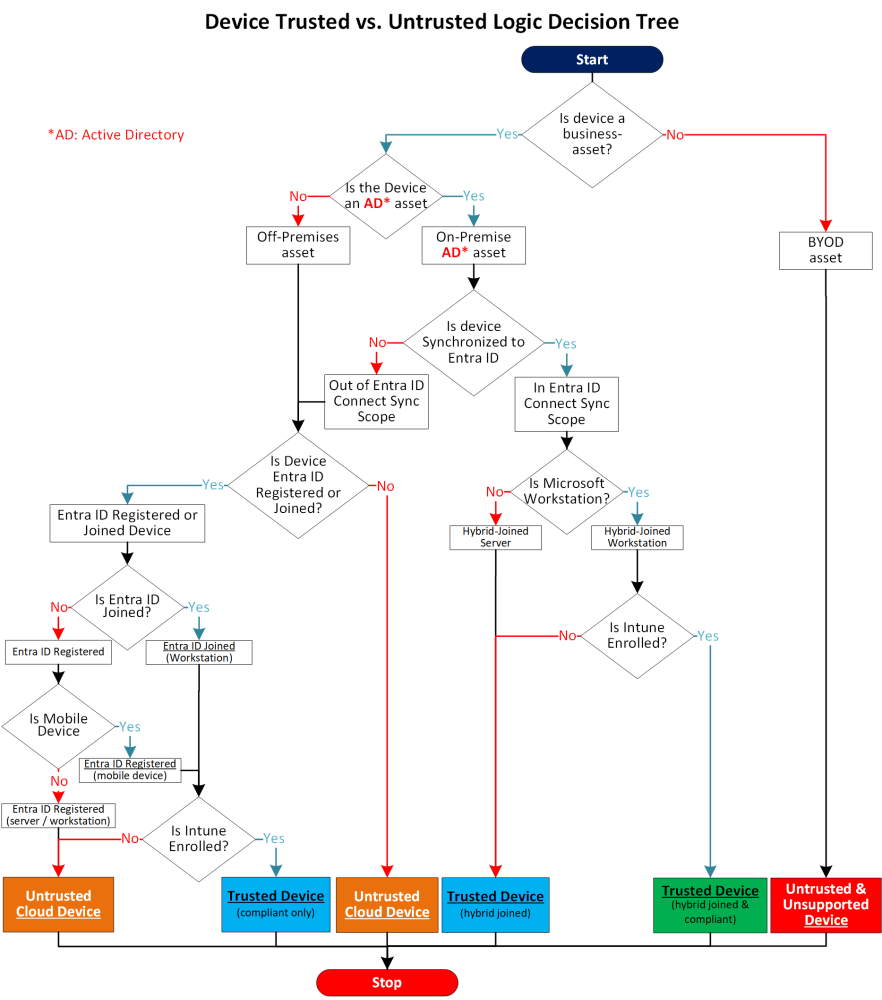
The purpose of this Knowledge Base Article is to provide IT business service desk personnel, support staff, and IT administrators with a structured understanding of how Entra ID (previously Azure AD) evaluates device–trust. This document provides a structured reference for understanding how Entra ID evaluates device trust. It is not a troubleshooting guide.
Trusted device signals, if configured, monitor and impact access to corporate applications, data and systems. Whether you’re setting up new endpoints, supporting hybrid/remote users, or reviewing Conditional Access results, knowing how a device is classified – trusted or untrusted – is essential. The following guidance outlines how Entra ID determines device trust based on join state, synchronization scope, and management status. It is intended to help:
-
Standardize troubleshooting steps
-
Clarify how devices qualify for access to corporate systems or assets
-
Reinforce security boundaries between corporate–managed assets and personal (BYOD) devices
This can be used as a reference for device onboarding, Conditional Access reviews, or when investigating failed login attempts.
Step 1: Identify Device Ownership (Business vs. BYOD)
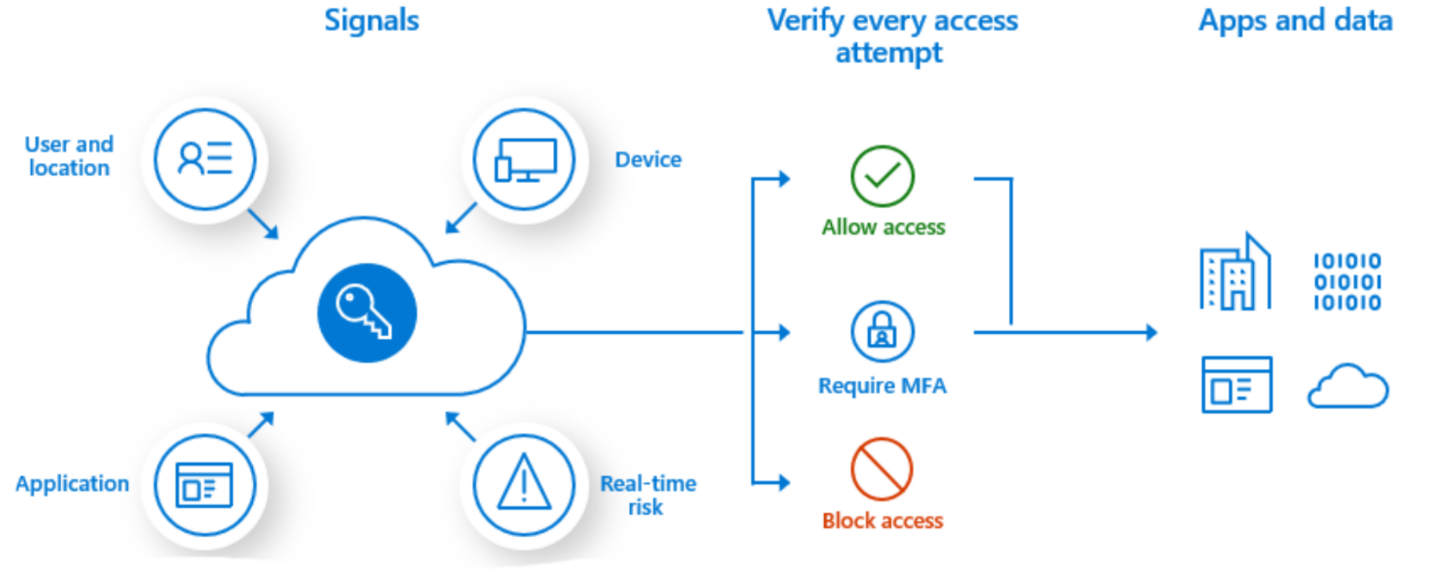
The first and most fundamental question is whether the device (or asset) is corporately owned or a personal (BYOD) device. This decision defines the security perimeter and determines if the device falls under organizational management controls like Intune or Entra ID policy enforcement. MS Article: Learn about Conditional Access and Intune
-
Business asset devices are expected to follow organizational compliance, management, and registration standards. These devices can be joined to Entra ID, managed by Intune, and brought under Conditional Access and compliance checks.
-
BYOD (Bring Your Own Device) assets are personal devices. These are outside of enterprise administrative control as these are not registered or enrolled. Due to the high variability and limited oversight, these are treated as untrusted and unsupported for direct access to sensitive resources. Note: BYOD devices may be configured to access resources indirectly through applications such as Workspace One or Citrix.
📌 Tip: Always start by identifying device ownership (business vs. BYOD). This determines if further evaluation is needed.
Q: Is the device a corporate business asset?
-
Yes – Proceed to step 2 (Determine Asset Source)
-
No – BYOD – End
Step 2: Determine Asset Source (On–Prem vs. Off–Prem)
This step distinguishes between devices that are managed within a traditional on–premises Active Directory (AD) environment and those that are entirely cloud–managed or standalone. This classification influences whether a device can participate in Entra ID Hybrid Join or needs to rely solely on cloud registration/join.
-
On–Premises AD assets: These devices are joined to the traditional AD and may be synchronized to Entra ID using Azure AD Connect. If they are within the sync scope, they can become hybrid–joined, creating a dual identity in both environments.
-
Off–Premises assets: These are usually cloud–native devices, standalone, or not domain AD joined. They can be either registered (lightweight identity) or fully joined to Entra ID. Device trust depends heavily on these states combined with Intune enrollment.
Q: Is the device joined to on–premises Active Directory (AD)?
-
Yes – On–Prem AD Asset → Proceed to Step 4 (Entra ID Hybrid Join Evaluation)
-
No – Off–Prem (Cloud) Asset → Proceed to Step 3 (Entra ID Join State Evaluation)
Step 3: Entra ID Join State Evaluation (Registered or Joined)
This section focuses on cloud–managed devices. If an off–premises device is not domain–joined, trust must be established through Entra ID Registration or Entra ID Join.
-
Entra ID Registered: Indicates a lightweight “device” identity that allows limited Conditional Access evaluation. Typical for mobile scenarios.
-
Entra ID Joined: Indicates full cloud “device” identity participation. The device can be fully managed and evaluated against compliance policies when paired with Intune.
Q: Is the device Entra ID Joined??
-
Yes – Entra ID Joined (Windows Workstation only)
— Q: Is the Windows device Intune Enrolled?
— Yes: Trusted – Compliant – Stop
— No: Untrusted – Stop
-
No – Entra ID Registered
— Q: Is it a mobile device?
—Yes: Entra ID Registered (Mobile Device)
—- Q: Is the device Intune Enrolled?
—– Yes: Trusted – Compliant – Stop
—– No: Untrusted – Stop
—No: Entra ID Registered (Server or Workstation) – Untrusted – Stop
Supporting Articles:
-
MS Article: Require device compliance with Conditional Access: Describes creating policies that require devices to be marked as compliant via Intune.
Step 4: Entra ID Hybrid Join Evaluation (On–Prem)
Microsoft Entra ID Connect is an on–premises application that keeps local Active Directory users, computers and groups in sync with Entra ID so users can sign in with their devices using their same credentials. Synchronization scopes decide which users, groups, or other objects from Active Directory get sync’ed to Entra ID.
On–prem devices that are in scope for synchronization are identified as Entra ID Hybrid Joined. Hybrid Join creates a dual identity in both on–prem AD and Entra ID, supporting cloud and legacy access.
Q: Is the device synchronized to Entra ID (within Sync scope)?
-
Yes: Hyrid-Joined – Proceed
-
No: Not Hybrid-Joined – Proceed to Step 3 (Entra ID Join State Evaluation)
Q: Is the Hybrid-Joined device a workstation?
-
Yes: Workstation – Proceed
-
No: Hybrid–Joined Server – Trusted – Hybrid Only – Stop
Q: Is the Hybrid-Joined Workstation Intune Enrolled?
-
Yes: Trusted – Hybrid & Compliant – Stop
-
No: Trusted – Hybrid Only – Stop
Supporting Articles:
-
MS Article: Device compliance policies in Microsoft Intune: Provides an overview of compliance policies and their role in device management.
Step 5: Assign Final Trust Classification
Each decision path terminates in a trust classification. These states determine how the device is treated by Conditional Access, especially when evaluating controls like compliant device, hybrid join, and registered status.
Final Trust States:
-
Trusted (Hybrid + Compliant): Workstation, Hybrid–Joined, Intune Enrolled
-
Trusted (Hybrid Only): Server or Workstation not Intune enrolled.
-
Trusted (Compliant Only): Entra ID Registered/Joined, Intune Enrolled
-
Untrusted: Not Intune enrolled, not joined, or out of sync scope
-
Untrusted & Unsupported: All BYOD devices
Supporting Articles:
-
MS Article: Use Conditional Access with Microsoft Intune compliance policies: Discusses integrating Conditional Access with compliance policies to control device access.
Practical Applications
Use this logic flow to:
-
Review existing device states during Conditional Access reviews.
-
Validate Intune and Entra ID integration configurations.
-
Audit devices against trust classification for compliance.
Ask yourself:
-
Are your devices falling into untrusted states due to missing Intune enrollment?
-
Are off-prem business assets properly registered or joined?
-
Are BYOD devices being allowed more access than they should?
Final Thoughts To Readers
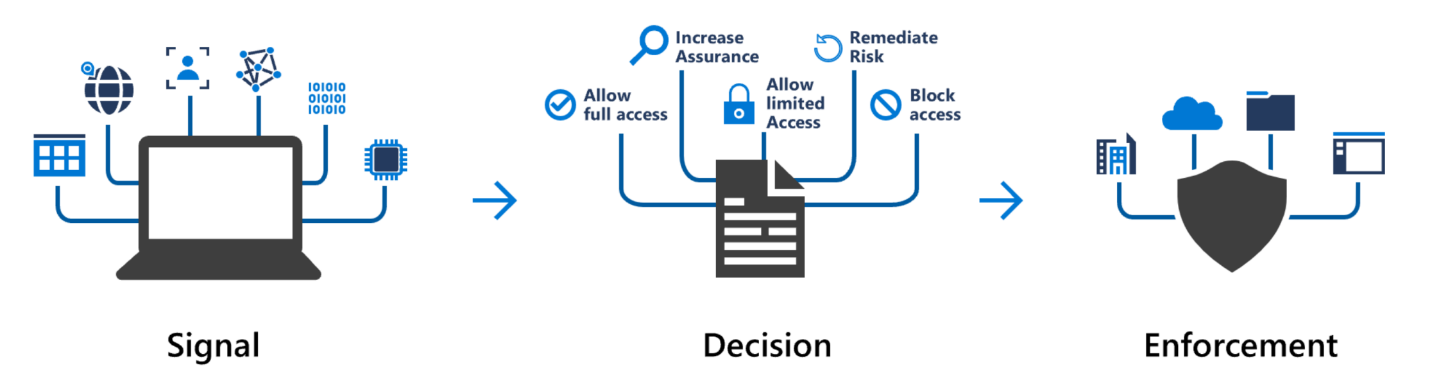
Follow this logic to tighten access boundaries and reduce risk exposure.
I hope this made sense. You’re not always going to catch every risk – no one does. But what separates prepared defenders from the rest is a solid grip on the fundamentals. And this right here? These are the fundamentals.
Security isn’t magic. It’s configuration, consistency, visibility, identity, and compliance. Don’t sit on your hands and wait for a breach to teach you that.
Take action. Learn how your devices are classified. Know your trust boundaries. Close the gaps.
Enjoy – and let me know if you have questions.

Glossary
-
Entra ID (formerly Azure AD): Microsoft’s cloud-based identity and access management service.
-
Entra ID Registered: Lightweight registration for personal or unmanaged devices. Often used with BYOD.
-
Entra ID Joined: Full device identity in the cloud. Common for company-managed Windows devices.
-
Hybrid Joined: Devices joined to both on-prem Active Directory and Entra ID.
-
Conditional Access: A set of policies in Microsoft Entra that controls access based on conditions such as user, location, and device state.
-
Intune: Microsoft’s endpoint management solution used to manage device compliance and configuration.
-
BYOD: Bring Your Own Device – personal devices not owned or controlled by the organization.
-
Trusted Device: A device that meets identity and/or compliance standards to access corporate resources.
-
Untrusted Device: A device that fails identity, management, or compliance checks, and is restricted or blocked from access.