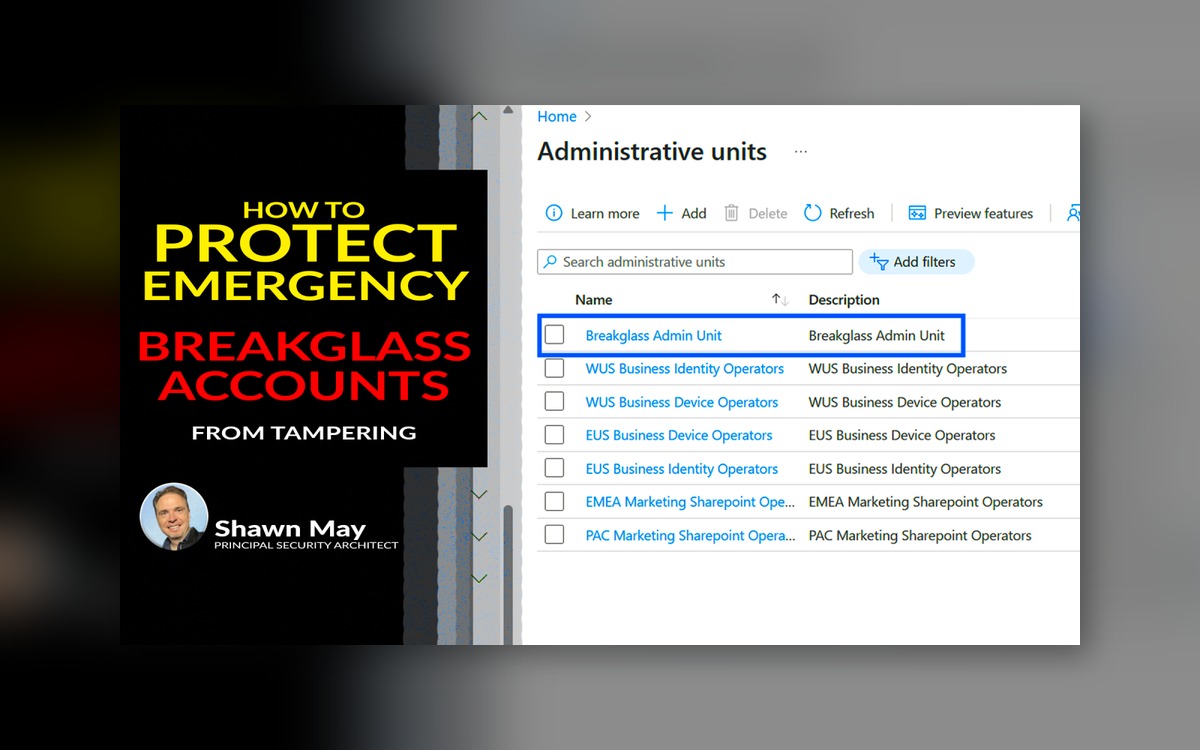
Are Your BreakGlass Accounts Protected by Restricted Admin Units?
How to Use Restricted Management Admin Units to Enforce Least Privilege in Microsoft Entra ID
How can Restricted Management Administrative Units enhance the security of BreakGlass accounts? BreakGlass accounts are critical for emergency access but pose significant security risks if not properly managed. By leveraging Admin Units with restricted management, you can isolate and protect these accounts, ensuring they remain secure and available when needed.
Step-by-step:
-
Sign in to the Microsoft Entra admin center at https://entra.microsoft.com.
-
In the left-hand navigation pane, select Identity.
-
Under Roles & admins, click on Admin units.
-
Click + Add to create a new administrative unit.
-
Provide a name and description for the administrative unit (e.g., “BreakGlass Admin Unit”).
-
Toggle Restricted management administrative unit to Yes to prevent tenant-level admins from modifying this unit.
-
Click Next: Assign roles.
-
Assign the Global Administrator role to this unit, ensuring only authorized users can manage it.
-
Also assign the Privileged Authentication Administrator role to this unit. This role controls who can manage authentication methods for privileged accounts – thus adding an additional security layer.
-
Ensure that only authorized, trusted individual users (not groups) are assigned eleigible to manage this Admin Unit and its roles.
-
Click Review + create, then Create to finalize the administrative unit.
-
To assign your BreakGlass account to this Restricted Management Admin Unit (RMAU), open the newly created Admin Unit under Roles & admins > Administrative units, navigate to the Users tab, click Add members, select your BreakGlass accounts, and assign them to this Admin Unit.
-
Use Privileged Identity Management (PIM) to check out and validate the Privileged Authentication Administrator role scoped to your newly created RMAU: a.) In the Entra admin center, go to Identity > Privileged Identity Management. b.) Select Microsoft Entra roles, find the Privileged Authentication Administrator role assigned to your RMAU. c.) Activate (“check out”) this role. d.) Validate you can perform key tasks such as resetting an authentication method to confirm correct scope and functionality.
-
Regularly review BreakGlass accounts, rotate credentials securely offline, and restrict usage strictly for emergencies.
-
Periodically test BreakGlass access to ensure emergency functionality while maintaining strict permission boundaries.
Why this matters: Implementing Restricted Management Administrative Units for BreakGlass accounts enforces the principle of least privilege by isolating these high-privilege accounts from regular administrative activities. This approach mitigates the risk of accidental or malicious modifications, ensuring emergency access remains secure and available during critical situations.
Use Case: Imagine your organization experiences a global admin account lockout due to a misconfiguration or cyberattack. The BreakGlass account, isolated in its own Restricted Management Admin Unit, remains unaffected by standard policies and provides secure, emergency access to restore normal operations without exposing unnecessary permissions or increasing attack surface.
If you have questions about setting up Admin Units or role scoping, reach out to us.

#BreakGlass #MicrosoftEntra #PrivilegedAccess #LeastPrivilege #IdentitySecurity