Conditional Access, Read Right: The If-Then Engine at Your Front Door
What Conditional Access Actually Is
Same person, same password, two mornings. Tuesday Jane signs in from her desk – her email just opens. Thursday she signs in from a coffee-shop on a laptop and gets a phone MFA prompt first. Nothing about her account changed. The situation did, and something read it and decided how hard to make her work.
That something is Conditional Access, Microsoft security policy engine for sign-in decisions. This gathers signals about a sign-in, who it is, what app, what device, where from, how risky, then matches them against your rules and enforces an outcome:
- let them in
- block them
- or let them in with conditions
Microsoft calls it the engine that "brings signals together, to make decisions, and enforce organizational security policies."
Here's the part that trips people up. Conditional Access runs after the password check. Microsoft is plain: policies "are enforced after first-factor (such as password) authentication is completed." Conditional Access is not a firewall or an antivirus product. It decides who gets in and on what terms, and that's the job. This minimally requires a Microsoft Entra ID P1 to run at all, and P2 once you really decide you want it responding to real risks.
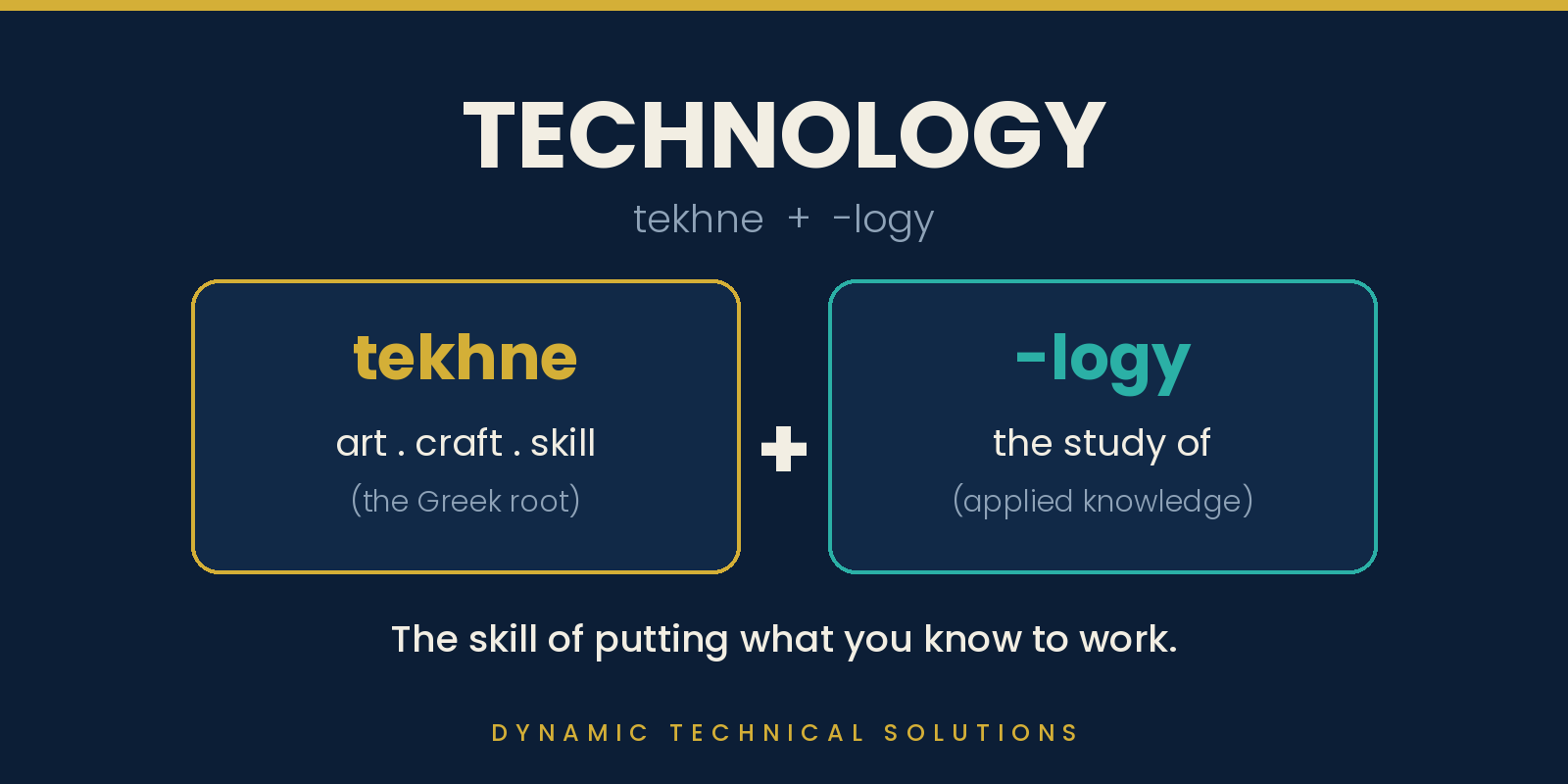
Anyone can look that definition up online or use an AI. Which brings up a word throw around (far too often) mis-defined. Technology. This comes from Greek “tekhne”, meaning “art”, “craft”, or “skill”, and -logy, “the study of.” So technology isn't the knowing (as is being textbook smart). It is about applying and studying. You can read every page Microsoft has written on Conditional Access and still freeze the first time you open a real policy and have to say what it does. Owning the manual and working from it are different things. (Closing that gap, from knowing the definition to reading a live policy and spotting what's wrong in moments, is exactly what I coach businesses on.)
Reading a Policy as a Sentence
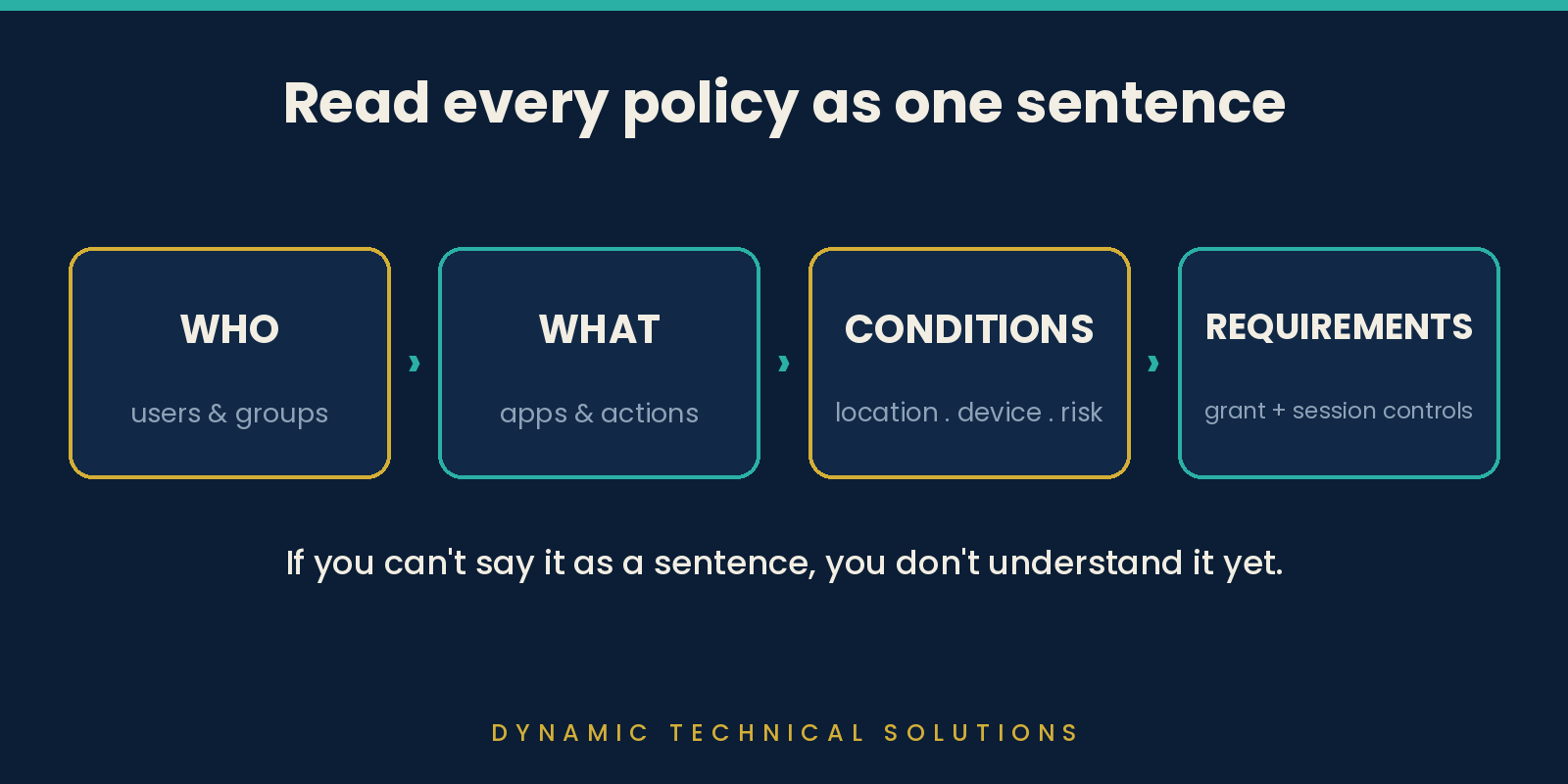
Every Conditional Access policy reads as one sentence:
- WHO (users or groups) accessing
- WHAT (apps or actions)
- under WHICH CONDITIONS (location, device, platform, risk) must meet
- WHAT REQUIREMENTS (grant and session controls).
Say a policy out loud that way and you know what it does. If you can't, you don't totally grasp it yet – practice more.

Two pieces of logic decide the rest, and both will bite people who skip them.
- First, exclude beats include, always. A user who's both included in Policy A, but also sitting in an excluded group is excluded. That's what keeps break-glass accounts working, and it's the classic trap too: you exclude a group, forget who's in it, and the policy quietly protects less than you think. (Checking who's really in a group is one of the reading drills in the coaching.)
- Second, policies stack with AND. When more than one matches a sign-in, each one has to be satisfied. Microsoft says it straight: "all applicable policies must be satisfied." One asks for MFA, another for a compliant device, the user needs both. No priority number, no first-match-wins. No preferences.
However, and above all sits one very basic rule: BLOCK WINS. "If there's a policy that is configured with the block grant control, enforcement stops there, and the user is blocked."
IMPORTANT TIP: Here is why you read and study a policy, and not just its name. Take, for instance, a policy called "MFA – All Users" that can quietly leave out (exclude) half the company. Nothing on the surface tells you, because the accounts this policy skips are getting in easier, not harder. There's no lockout to chase, no particular error to notice. They just keep signing in without a second factor until an attacker finds one. You catch it by reading the scope, because the name never will. (Catching a policy whose name misrepresents its scope is a favorite exercise of mine.) Documenting and labeling policies is a start. Defining each so the scope matches the name is the harder skill, and that's a good part of what my coaching instills with teams.
The Baseline and Policy Hygiene
Before you build a single Conditional Access policy, get four things right:
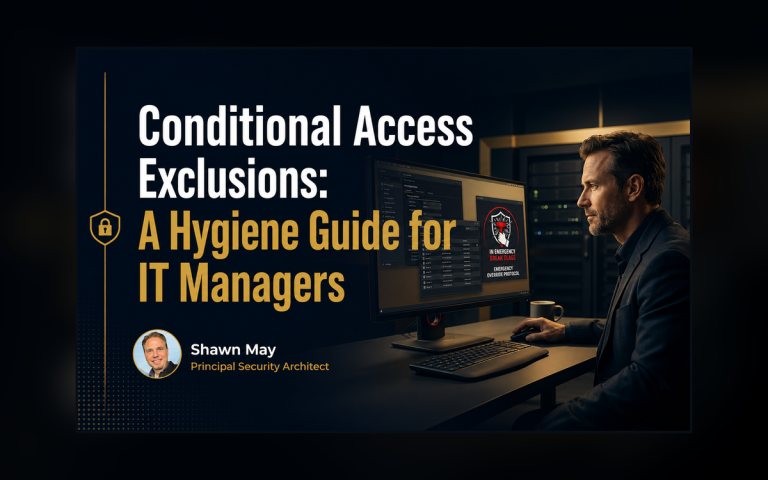
- Break-glass accounts excluded from every policy
- New policies set to report-only
- Enforce decision made from logged evidence instead of guessing, and
- Verification after with What-If and the sign-in logs.
Skip these and you'll eventually lock yourself out of your own tenant.
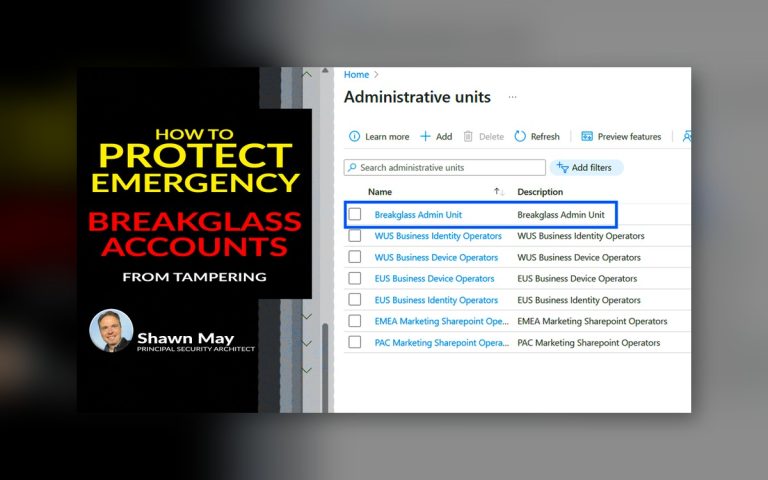
Break-glass first. Cloud-only accounts, long random credentials stored offline (ideally FIDO2), excluded from ALL Conditional Access so they still work when everything else is broken. Then alert so any sign-in by one of them pages a human. Lock yourself out with a bad policy and no way back in, and you learn why this matters the expensive way. (This is a vital step, so we walk the break-glass build and the alerting in the coaching, because it's the one mistake with no undo that has to be done right.)
Report-only is your safety net. A new policy runs in report-only, Entra logs what it would have done to real sign-ins, and you fully review that data before you flip it on. The decision to enforce comes from evidence – not a hunch. Don’t skip this vital steps.
One more rule that certainly earns its keep: one policy, one job. Need MFA and compliant devices? That's two policies, not one carrying both. The “done-wrong” policy: somebody builds a policy with five conditions and three grant controls, it blocks a VP on a Tuesday, and nobody can tell which of the eight moving parts did it. The “done-right” policy reads as a simple sentence, troubleshoots in moments, and changes without four surprise side effects. (Decomposing an overloaded policy into single-purpose ones is a standard drill in the coaching, because almost every messy tenant has at least five to 10.)
What Microsoft HELPS YOU PREPARE
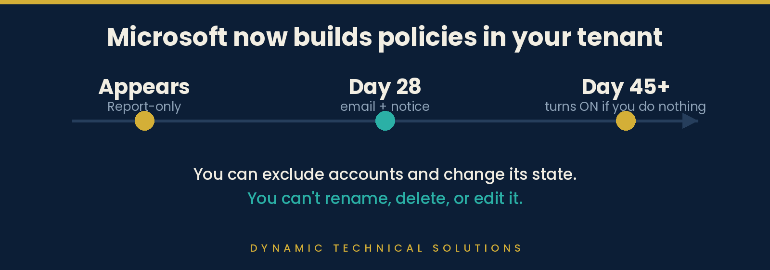
Microsoft now builds Conditional Access policies inside your tenant for you. Each one shows up in report-only, marked "Microsoft" in the Created by column. You get 28 days of email and Message center notice, and if you leave it alone in report-only, Microsoft switches it on no less than 45 days after it appears. Your control over it is narrow. You can change the state and exclude accounts, and that's it. You can't rename or delete it, and you can't touch its conditions or grant controls.

Blocking legacy authentication and device code flow, policies once built by hand, now ship on their own. Good, mostly. The clock runs whether or not anyone read the email, so a tenant nobody's watching can get a policy switched on by surprise. These managed policies are a basic floor – certainly not a strategy, one-size-fits-most by design. When one policy is right in spirit but wrong for your scope, use Duplicate: you get an editable copy of that policy seeded with Microsoft's settings. Tune it, then turn the managed one off. (Deciding per policy whether to adopt, duplicate-and-customize, or replace it is one of the judgment calls we work through in the coaching.)
So here's the one thing worth doing today.
- Open Entra, go to Conditional Access
- Filter Created by = Microsoft, and read what's there.
- Exclude your break-glass accounts from each one now.
- Then, policy by policy, decide: own it, customize it, or replace it. You can't defend an estate you've never read.
Frequently Asked Questions
Q. Does Conditional Access replace my password?
A. No. The password check runs first, and Conditional Access only evaluates after it passes. It decides whether that authenticated sign-in gets in, gets blocked, or has to pass something extra like MFA. It's the step after the password, never the password itself.
Q. If two Conditional Access policies disagree, which one wins?
A. Every policy that matches a sign-in applies, and all of them must be satisfied, because policies combine with AND (Policy 1 and Policy 2, etc.). There's no priority order. The one exception is block: if any matching policy blocks the sign-in, it stops there no matter what the others grant.
Q. What license do I need for Conditional Access?
A. Minimally, Microsoft Entra ID P1. Risk-based conditions, the ones that read sign-in risk and user risk from Entra ID Protection, need Entra P2. Security defaults are the free alternative, but you run one or the other, never both.
Q. How do I test a policy without locking people out?
A. Set it to report-only. Entra evaluates it against real sign-ins and logs what it would have done without enforcing it. Read that data in the sign-in logs, confirm who'd get caught, fix or accept each case, then switch the policy on.

Glossary
Conditional Access: Microsoft Entra's policy engine that reads sign-in signals, matches them against your rules, and grants, blocks, or conditionally grants each sign-in. Runs after the password check.
Grant control: The requirement a policy enforces to let a sign-in through. Require MFA, a compliant device, a password change, or block outright.
Report-only: A policy state where Entra logs what a policy would have done to real sign-ins without enforcing it. The safe way to test before turning a policy on.
Break-glass account: A cloud-only emergency admin account excluded from every Conditional Access policy so you can still get into your tenant if a policy locks everyone else out.
Block wins / AND logic: When several policies apply to one sign-in, all must be satisfied. If any one of them blocks, the sign-in is blocked no matter what the others allow.
Microsoft-managed policy: A Conditional Access policy Microsoft creates in your tenant, shown as "Microsoft" in the Created by column. You can exclude accounts and change its state, but you can't rename, delete, or edit it.
Security defaults: Microsoft's free, one-switch baseline for smaller tenants. Can't run at the same time as Conditional Access.