🔒 Your First Line of Defense in 2025: Identity Security User Risk – Part 1 🔒
As we step into 2025, it’s time to make a New Year’s decision that will protect your business all year long: incorporate security into your strategic planning. Let’s start with Identity Security—but what exactly is it?
Identity Security focuses on protecting access to your systems by ensuring the right people, with the right credentials, access the right data at the right time. It’s the cornerstone of a strong cybersecurity strategy, safeguarding your business against breaches that often stem from compromised identities.
With Microsoft Entra ID Identity Protection, you’re not just securing access—you’re building a fortress around your data.
Key Identity Protection Features
-
Risk-based Conditional Access: Automatically block risky users before they connect.
-
Automated Threat Responses: Mitigate user threats with instant, proactive measures.
-
User Risk Detection: Identify and remediate compromised accounts.
-
MFA Integration: Strengthen access control with seamless Multi-Factor Authentication.
Licensing Required: Microsoft Entra ID P2 or equivalent Microsoft Security and Compliance package.
How to Configure Conditional Access Policies to Mitigate User Risk:
What is User Risk? User risk refers to the likelihood that an account has been compromised. This can be triggered by signals such as:
Leaked Credentials
-
Credentials exposed in breaches or on the dark web can lead to attacks like credential stuffing.
-
Mitigation: Use MFA, monitor for breaches, and enforce unique, strong passwords.
Unusual Activity Patterns
-
Behavior deviations like logins from new locations or odd hours may indicate compromise.
-
Mitigation: Use analytics tools and conditional access policies.
Phishing/Malware Indicators
-
Phishing tricks users into revealing credentials; malware steals or exploits access.
-
Mitigation: Train users, block malicious emails, and deploy EDR tools.
Compromised IPs
-
Logins from malicious IPs signal high-risk activity (botnets, proxies).
-
Mitigation: Block risky IPs and restrict access via Conditional Access.
By configuring Conditional Access policies to address user risk, you can proactively secure accounts and prevent unauthorized access.
Keep It Simple:
I suggest starting by keeping things simple. Setting up these policies doesn’t have to be overwhelming. Start with the basics to get strong protections in place—like addressing user risk and requiring authentication strength. Once the foundation is set, you can explore further customization to align the policies even more closely with your organization’s specific needs.
Follow these steps to setup your High-Risk policy:
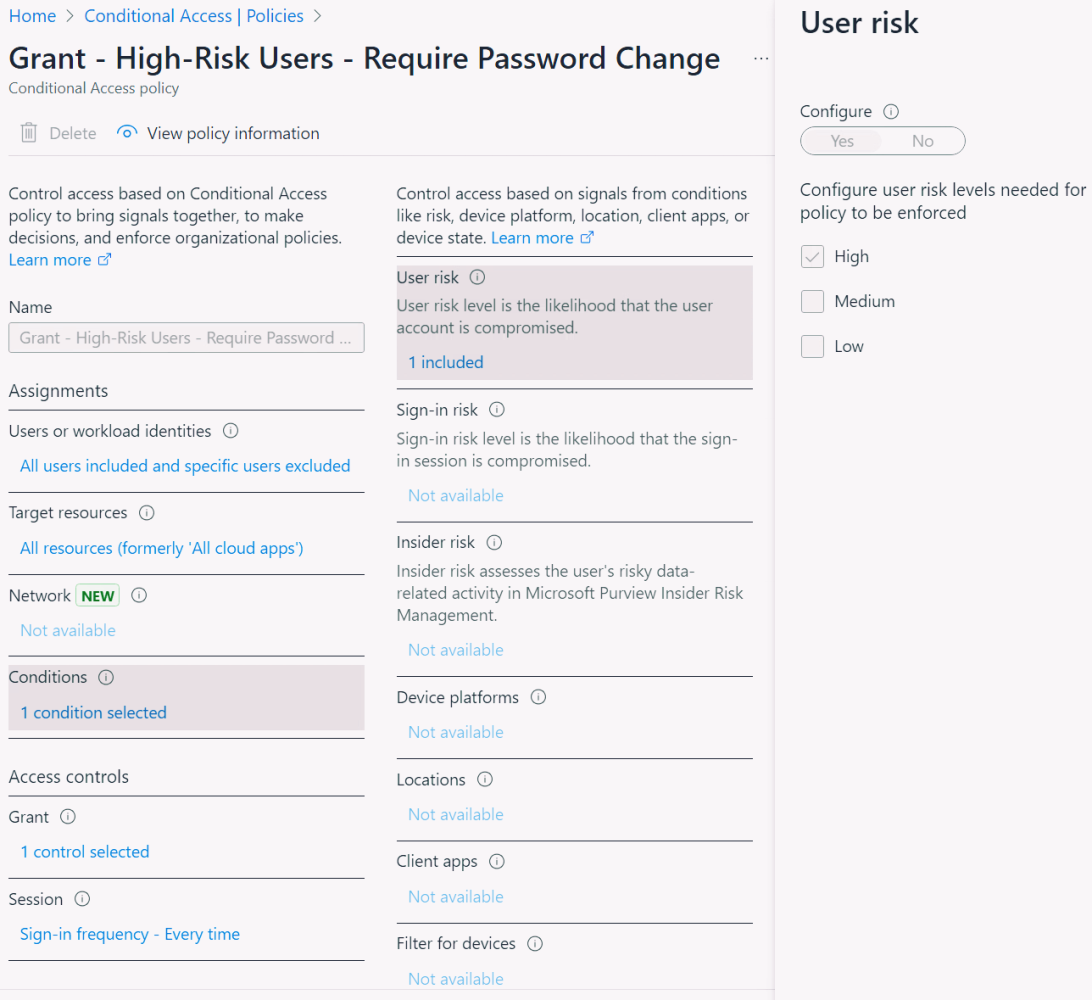
1️⃣ Open the Azure portal and navigate to Microsoft Entra ID. 2️⃣ Use Privileged Identity Management (PIM) to minimally check out or activate the Conditional Access Administrator role to ensure you have the necessary permissions. 3️⃣ Go to Conditional Access and select + New policy. 4️⃣ Define policy assignments, targeting specific users, apps, or conditions. – Configure User Risk to either high, medium, or both, depending on your security requirements.
💡 Tip 1: Avoid combining User Risk and Sign-in Risk in a single policy to maintain clarity and simplify troubleshooting.
5️⃣ Set access controls under the Grant section: – Enable Grant and require Authentication Strength—either use the default or define methods tailored to your business needs. – Ensure multiple controls are configured to require all selected controls for enhanced security. – Select Require password change to allow users to self-remediate in the event of a risk detection. 6️⃣ Configure Session Controls: – Set Sign-in frequency to every time to enforce frequent authentication and increase security.
💡 Tip 2: Always start in report-only mode to observe the impact without disrupting workflows.
By following these steps, you can efficiently address user risk and strengthen your organization’s identity security framework.
Identity Protection | Risky Users
A strong identity strategy goes beyond just keeping attackers out—it’s about enabling your business to work securely and seamlessly. With Entra ID, you get the tools to not only safeguard your systems but also to adapt and thrive in an ever-changing security landscape. It’s about building resilience and making security a foundation for growth.
📩 Contact us or leave a comment to learn how Entra ID can help you secure your business for 2025 and beyond.

References:
-
Microsoft Entra ID Protection Overview: This resource provides an in-depth understanding of Microsoft Entra ID Protection, detailing its capabilities in detecting, investigating, and remediating identity-based risks.
-
Microsoft Entra Licensing Documentation: This page outlines the various licensing options available for Microsoft Entra ID, including the features included in each tier (Free, P1, P2) and their respective capabilities.
-
Building a Conditional Access Policy: This guide offers step-by-step instructions on creating Conditional Access policies within Microsoft Entra ID, helping organizations enforce access controls based on specific conditions.
Glossary:
-
Azure Portal: A web-based management tool from Microsoft for administering Azure services, including Entra ID. It provides a unified platform for monitoring and managing cloud and on-premises resources.
-
Conditional Access: A tool in Microsoft Entra ID that provides automated access controls based on specific conditions, such as user risk level, device compliance, or location.
-
Conditional Access Administrator Role: A specific role in Microsoft Entra ID that grants permissions to configure and manage Conditional Access policies.
-
High-Risk Policy: A Conditional Access policy designed to mitigate accounts with a high likelihood of compromise by implementing strict access controls and requiring authentication strength.
-
Identity Security: A cybersecurity practice focused on ensuring that only authorized individuals with verified credentials access organizational systems and data.
-
Microsoft Entra ID: A comprehensive identity and access management service from Microsoft that helps organizations secure their identities, manage access, and protect sensitive data.
-
Microsoft Entra ID P2: An advanced licensing tier of Entra ID that includes features such as identity protection, risk-based Conditional Access, and governance capabilities.
-
Multi-Factor Authentication (MFA): An authentication method requiring users to verify their identity through two or more factors, such as a password and a mobile app or biometric scan.
-
Privileged Identity Management (PIM): A Microsoft Entra feature that allows time-bound, just-in-time role activation to minimize unnecessary access to sensitive systems.
-
Report-Only Mode: A feature in Conditional Access that allows administrators to monitor the effects of a policy without enforcing it, enabling fine-tuning before full implementation.
-
Risk-Based Conditional Access: A feature that evaluates risk signals, such as user behavior or leaked credentials, to dynamically enforce access controls for potentially compromised accounts.
-
Session Controls: Settings in Conditional Access policies that define how long authenticated sessions remain active, ensuring frequent re-authentication for sensitive systems.
-
Sign-In Frequency: A session control that specifies how often users must reauthenticate during their active sessions to maintain security.
-
User Risk: An assessment of how likely it is that a user’s account has been compromised, triggered by signals such as unusual sign-ins, leaked credentials, or attack patterns.
-
Authentication Strength: Policies defining the required level of authentication security, such as enforcing specific factors (e.g., password, biometric, or mobile app) to meet business needs.