PRT, SSO, and Office Activation Headaches – Read Before Blaming IT
This topic routinely comes up: why does Office continue asking for credentials, or what’s actually required for SSO on Windows? The details can be a mess. After talking with a lot of users and researching recent changed and additions, I wanted to clear things up in one place. Let me know if this helps or if you have questions.
Purpose
The purpose of this article is to explain how Office activates itself on Windows computers, including auto-activation and silent activation. This KBA covers the meaning and differences between SSO with a Primary Refresh Token (PRT) and Seamless Single Sign-On (S-SSO). This also clarifies when users will and/or will not see Microsoft Office login prompts.
Scope
This article only applies to Microsoft Office applications installed on Windows desktop and laptop computers that are registered with Microsoft Entra ID (formerly Azure AD) or hybrid-joined to both Entra ID and local Active Directory. It does NOT apply to:
-
Office apps in web browsers (Office Online)
-
Office apps on iOS, Android, or Mac
Office Activation Scenarios
-
Primary Refresh Token or PRT (Most Common): When supporting Office activation on business Windows devices that are Entra ID-joined or hybrid-joined, keep in mind how the process works. When a user signs in to a properly joined Windows device (Entra ID-joined or hybrid-joined), the system issues a Primary Refresh Token (PRT). This preferred PRT method enables Office to activate silently in the background. As long as the PRT is valid and the user remains signed in, Office should not prompt for activation or credentials. The process should be seamless for the end user. For further technical details, see Understanding Primary Refresh Token (PRT))
-
For all supported business endpoints joined or synchronized to Entra ID, Office activation and authentication now rely entirely on PRT and modern cloud authentication. If Office prompts for credentials on a properly configured Windows device, it almost always means the PRT is missing, expired, or the device has been offline for an extended period (see section: Common Scenarios Where PRT is Lost or Invalid).
In this context, “Properly configured” means the device is visible in Entra ID, active within the last 30 days, not stale, not disabled, and has not been removed or deleted.
-
Seamless Single Sign-On (Least Common): The majority of enterprise Windows devices should be either Entra ID-joined or hybrid-joined using a PRT (described above). Seamless Single Sign-On (S-SSO) however exclusively applies only to Active Directory domain joined devices using Kerberos for M365 authentication, and not PRT. Although still available for devices not synchronized to Entra ID, as businesses synchronize more devices (both physical and virtual) to Entra ID, Seamless SSO is becoming a less common authentication mechanism. Seamless SSO does not apply to Entra ID-joined or Hybrid-joined devices. Seamless SSO only works with domain-joined devices. Systems that are not hybrid joined or not synced to Entra ID (such as certain Windows servers or a small number of workstations) use Seamless SSO instead of PRT. For further technical details, see Microsoft Entra seamless single sign-on.
Office Activation Prompt
If activation prompts appear, service or support staff should begin by verifying that the device still holds a valid Primary Refresh Token (PRT).
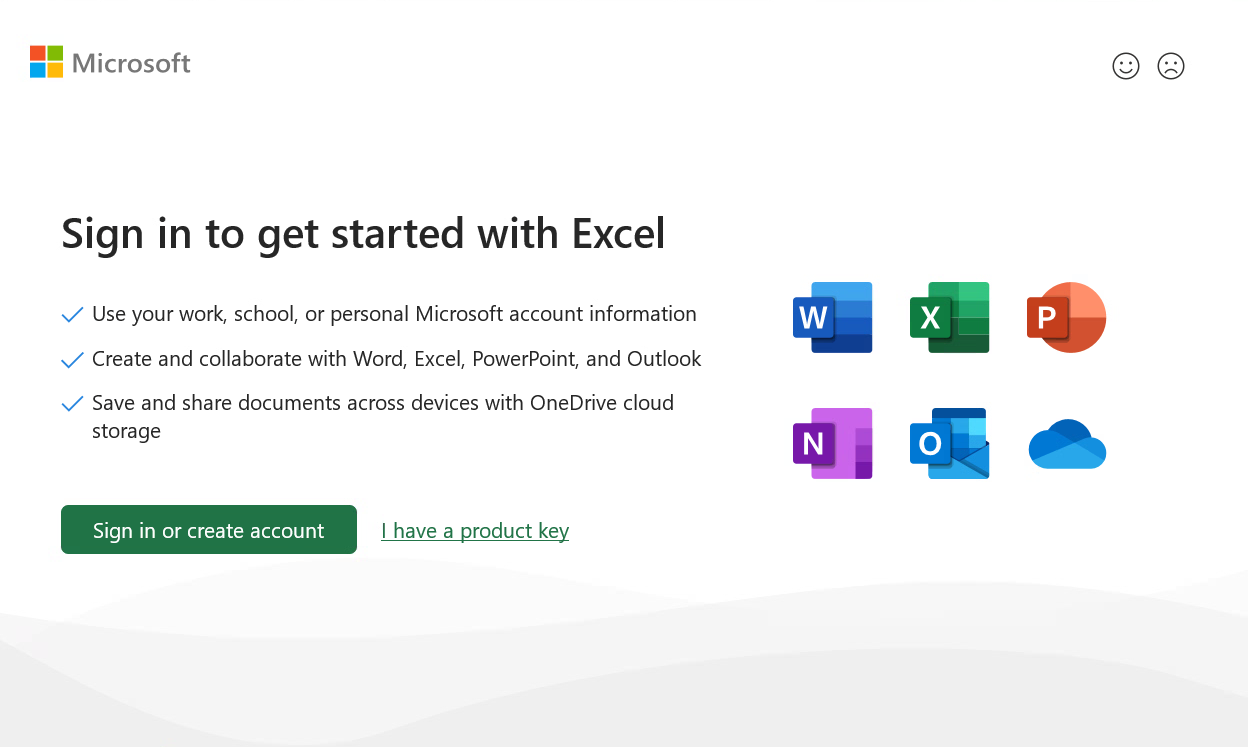
The most common reasons for losing the PRT include:
-
Signing out of Office
-
Switching user profiles
-
Device remaining offline for more than 14 days
In any of these cases, Office will prompt for credentials because silent activation is not possible without a valid PRT. For detailed steps on how to check the PRT status and scenarios where the PRT can be lost, refer to the Troubleshooting Checklist section below.
Note – At present, Microsoft Office activation sign-on (locally installed on the desktop) appears to support the following authentication methods: Password plus Microsoft Authenticator (MFA) along with local FIDO2 but does not support FIDO2 redirect.
Troubleshooting Section
When troubleshooting Office activation, check the device’s join status, user sign-in state, and network connectivity. Provided these elements are in order and the device is Entra ID-joined or hybrid-joined, silent Office activation should function as expected. If not, credential prompts are likely, and the root causes will generally fall into the scenarios outlined below.
Important: This behavior is standard for the enterprise environment and should not be considered a misconfiguration.
Checklist
Use this checklist to quickly identify and resolve common issues with Office activation and/or sign-in for Windows devices. Go through each step in order to make sure nothing is missed and to confirm the device is set up for silent activation and Single Sign-On.
-
Is the device Entra ID-joined or hybrid-joined?
-
Does dsregcmd /status show AzureAdPrt as YES?
-
Has the user signed out, switched users, or changed their password recently?
-
Has the device been offline for more than 14+ days?
-
Is the device present and enabled in Entra ID?
-
Are there any recent Conditional Access changes?
Function and Behavior
-
Silent Activation: Office activates in the background with no prompts for credentials. This only works if the device is Windows-based, Entra-joined or hybrid-joined, and the user’s Primary Refresh Token is valid. If the PRT is missing, expired, or the user signs out, switches users, or goes offline for 14+ days, silent activation fails and Office will prompt for login. Note: Silent activation does not work on Mac, iOS, Android, or browser-based Office apps.
-
Auto-Activation (Very First Attempt): Office attempts to activate itself at first launch. This can be silent or may prompt for login. Auto-activation tries on every supported platform, but truly silent auto-activation only works on Windows with a valid PRT on the first attempt. On Mac, iOS, or Android, “auto-activation” means you must sign in interactively – there is no silent background process. On Windows, if silent activation fails, you will be prompted for credentials.
-
Seamless SSO (Single Sign-On): After signing into Windows, you get no password prompts for Office and apps, as Kerberos authentication is used. This only applies on Windows devices joined to an on-premises Active Directory and not Entra ID/hybrid-joined. Important note: Seamless SSO does not apply to Entra-joined or hybrid-joined devices. Kerberos-based seamless SSO ignores PRT and uses your Windows session directly. This cannot be used in cloud-only environments.
-
Primary Refresh Token (PRT): A digital token issued to your Windows device after sign-in, used to prove your identity to Office and other Microsoft 365 apps. PRT is only available on Windows devices that are Entra-joined or hybrid-joined. If the PRT is invalid, expired, or lost (for example, due to sign-out, user switch, or no internet for 14+ days), Office and apps will prompt you to sign in again. Once obtained, all modern Microsoft apps (Windows, Mac, iOS, Android, browser) use PRT for Microsoft 365 and Entra ID authentication.
-
SSO using PRT: Single Sign-On using the PRT lets you use Office and apps without extra prompts as long as the PRT is valid. Only Windows Entra-joined or hybrid-joined devices can use this. If you sign out of Office, switch users, or lose your PRT, you must sign in again. For Mac, iOS, Android, or browsers, SSO uses PRT through the broker app (such as the Company Portal or Authenticator App). If the device is domain-joined only (no Entra), SSO with PRT doesn’t apply – classic Kerberos S-SSO is used instead.
-
Domain-Joined Only: The Windows device is joined to on-premises (local) Active Directory, not Entra ID. This enables Kerberos-based seamless SSO but does not use PRT for Office activation (PRT is unavailable). If the device is only domain-joined and not Entra/hybrid-joined, modern SSO features like PRT are unavailable.
-
Entra-Joined or Hybrid-Joined: The Windows device is joined to Microsoft Entra ID (cloud), or both Entra ID and on-premises AD (hybrid). This is required for SSO with PRT and silent Office activation. Seamless SSO (Kerberos) is not available – only SSO with PRT works here. On hybrid-joined devices, both systems are present, but Office SSO relies on PRT, not Kerberos.
-
Credential: A credential is your username, password, and sometimes a second factor (2FA). If you’re prompted for credentials in Office, it means your silent activation or SSO mechanism (PRT or Kerberos) didn’t work, for example if the PRT expired, became corrupted, or it’s an unsupported platform.
How to Check for a Valid PRT
-
Open Command Prompt as Administrator.
-
Run: dsregcmd /status
-
Under SSO State, find “AzureAdPrt”.
-
If it says YES, the device has a valid PRT.
-
If it says NO, the PRT is missing or invalid.
Check Device Join Status:
-
Under Device State, confirm “AzureAdJoined” or “DomainJoined” is YES.
-
If neither is YES, the device may not be properly joined.
Troubleshoot with Event Viewer:
-
Go to Event Viewer > Applications and Services Logs > Microsoft > Windows > User Device Registration > Admin.
-
Review PRT in Event Viewer > Applications and Services Logs > Microsoft > Windows > AAD > Operational.
-
Look for errors or warnings related to PRT issuance or device registration.
Common Lost or Invalid PRT Scenarios
-
User signs out of their Office application profile. The PRT for all Office apps will be invalidated and will no longer work.
-
Switching users in the same Windows login. Switching users, or logging in as a different user within the same Windows profile for Office apps, means a new PRT must be issued for the new user.
Example: With User A logged on with their Windows profile, User A logs off from their Office Apps, which invalidates User A’s PRT. Without User A logging off from Windows, User B then logs into Office Apps with User B‘s credentials and will be issued a new and separate PRT for their Office Apps only.
-
Device offline for 14 or more days. If a device does not connect to the internet for 14 days, the PRT will expire and cannot be refreshed. The user’s Office Apps will prompt for credentials at which time they will be issued a new PRT. If the computer stays connected to the Internet, the PRT will silently refresh at Windows login or every four hours.
-
Password change or reset. If a user’s password is changed, especially via self-service or by an admin, the existing PRT will be invalidated and needs to be renewed for every device for that user.
-
Device removed or disabled in Entra ID or Azure AD. If the device is deleted or disabled in the portal, the user’s PRT on that device will no longer be valid.
-
Sign-in policy or Conditional Access changes. Updates in Entra ID Conditional Access policies or authentication requirements may also require a new PRT to be issued, prompting a sign-in.
Example: Modification to access or session controls, such as sign-in frequency, compliance changes, authentication strength, or machine physical changes (TPM, IP address), may require a new PRT.
Example: Risky sign-in detection requiring password change will require a new PRT.
Important: Confirm that the company device is joined to Entra ID or is hybrid-joined. Silent activation and auto-activation are only supported on these Windows platforms (see descriptions below).
Important: Mac, iOS and Android devices using Office mobile apps or in a browser will require the Microsoft Authenticator app or Comp/Company Portal app (to act as a broker) to meet the authentication requirements for single sign-in.
Kiosk or Shared Devices
Shared devices or kiosk scenarios may behave differently from standard single-user setups. Users on these devices may be prompted for credentials more often, and some features of silent activation or SSO might not work as expected. In addition, device compliance requirements or Conditional Access policies can also impact Office activation and sign-in, potentially requiring additional authentication steps or restricting access until the device is compliant. Always review these factors if activation issues persist.
Final Thoughts
With all the buzzwords floating around like “Seamless SSO” and “Auto-Activation,” (blah, blah, blah), I hope this at least provides you with more of a thorough insight as to how this actually works.

Terms and Definitions
-
Entra ID: Microsoft’s modern cloud-based identity service (formerly called Azure AD) used for user, device, and app management.
-
Hybrid-Joined Device: A Windows device joined to both on-premises Active Directory and Entra ID.
-
Entra ID-Joined Device: A Windows device joined only to Entra ID (cloud directory), not to on-prem AD.
-
Primary Refresh Token (PRT): A secure, time-limited digital token granted at Windows login on Entra or hybrid-joined devices, allowing single sign-on to Office and other Microsoft apps.
-
Silent Activation: Office activates in the background using existing sign-in credentials, with no prompts to the user.
-
Auto-Activation: Office attempts to activate itself automatically on first launch, either silently or by prompting for credentials, depending on device state.
-
Seamless SSO (Kerberos): Legacy method using the Kerberos protocol for passwordless access to apps, only for classic domain-joined Windows devices.
-
Domain-Joined Device: A Windows device joined to on-premises (local) Active Directory, not Entra ID. Supports only Kerberos-based SSO, not PRT-based authentication.
-
Credential: Username, password, and sometimes a multi-factor authentication (MFA) code.
-
Conditional Access: Policies set in Entra ID to control which users or devices can access specific resources based on conditions like location or compliance.
-
Device Registration: The process by which a Windows device becomes known to and trusted by Entra ID or Active Directory.
-
Kiosk or Shared Device Mode: Special setup where multiple users share a device, sometimes requiring frequent re-authentication and differing from normal single-user scenarios.
-
dsregcmd /status: A Windows command used to check device registration and PRT status.
-
User Device Registration Logs: Event Viewer logs providing details on device registration, PRT issues, and errors with Entra or Hybrid join.